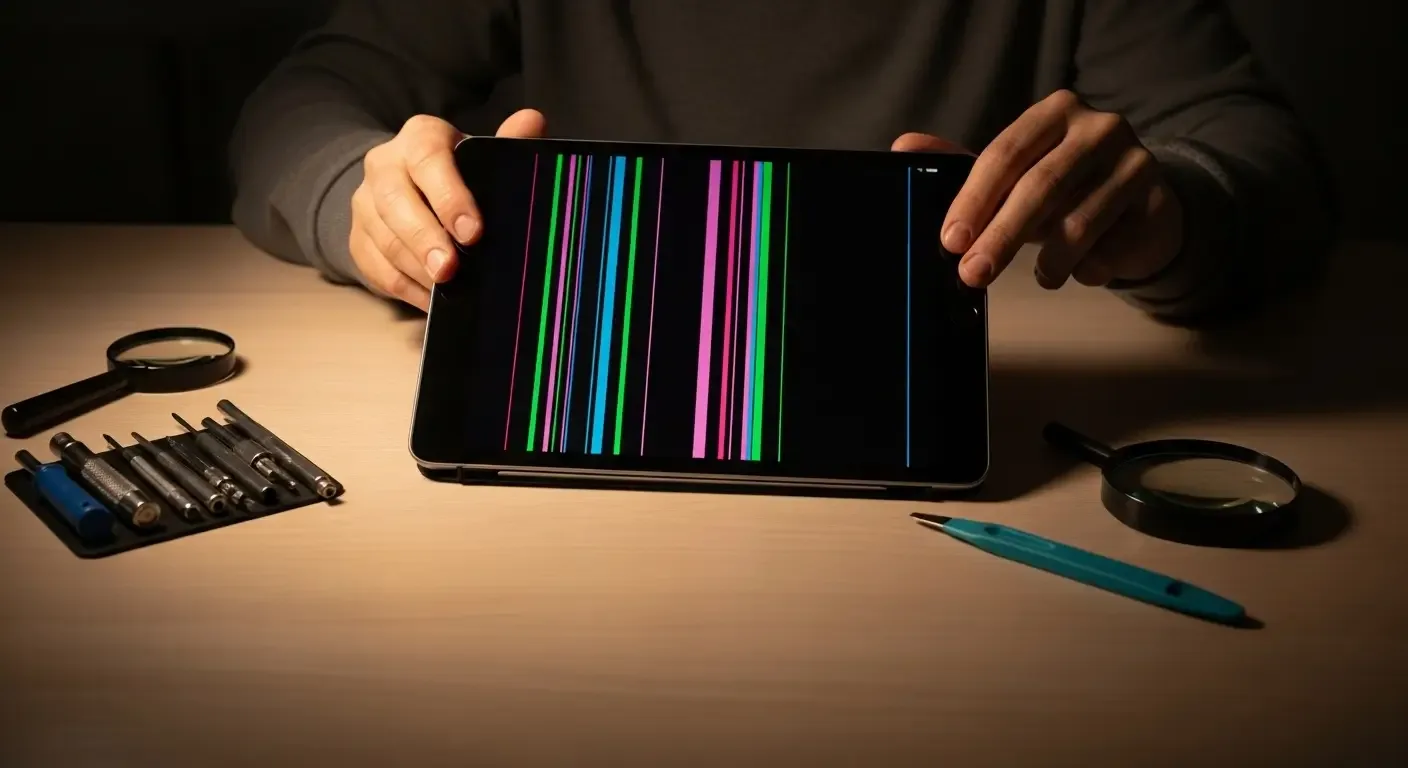
If your iPad screen shows lines or the touchscreen stops responding, it can be worrying. But in many cases, the issue can be fixed without replacing the entire device. This article explains the causes, troubleshooting steps, and repair options to help you restore your iPad quickly.
Common Causes of iPad Screen Lines or Touch Issues
- Physical damage: Drops or impacts may damage the screen internally.
- Loose display connectors: Flex cables or connectors inside may be dislodged.
- Moisture or liquid damage: Can directly affect touch response.
- Software glitches: Bugs or frozen processes may cause unresponsiveness.
- App conflicts: Some faulty apps may disrupt screen functions.
Basic Fixes You Can Try Yourself
1. Restart the iPad
Many issues resolve after a simple restart:
- Hold the Power + Home (or Volume Up for newer models).
- Slide to power off, then turn it back on.
2. Update iOS
Ensure you’re running the latest software:
- Connect to Wi-Fi
- Go to Settings > General > Software Update
- Download and install any available updates
3. Reset Settings
If problems persist, reset settings without erasing data:
- Settings > General > Transfer or Reset iPad > Reset
- Choose Reset All Settings
Technical Checks
1. Connect to iTunes or Finder
- Connect your iPad to a computer
- Open iTunes (Windows) or Finder (Mac)
- See if the iPad is detected and back up your data
2. Use DFU Mode
Device Firmware Update (DFU) mode can restore a completely unresponsive device:
- Enter DFU using the correct key combination
- Restore iOS via iTunes or Finder
When to Seek Professional Repair
- Permanent colored lines on screen
- Clear water damage
- Touch not working at all, even after reset
Prevention Tips
- Use a high-quality protective case
- Apply water-resistant screen protectors
- Avoid charging in humid or hot environments
- Keep iOS updated
FAQ
Q: Why does my iPad show green or purple lines?
A: Usually caused by display damage or a loose connector — may require screen replacement.
Q: Touch doesn’t respond in part of the screen. Replace the display?
A: Not always. Try reset first; if still unresponsive, consult a technician.
Q: iPad won’t turn on and shows lines. What to do?
A: Charge for at least 30 minutes. If no response, connect to iTunes and try restore.
Conclusion
iPad screen line or touch issues don’t always mean a dead device. Many can be fixed with simple troubleshooting. If not, a certified repair is the safest option. Proper care and protection can also prevent these issues in the future.