
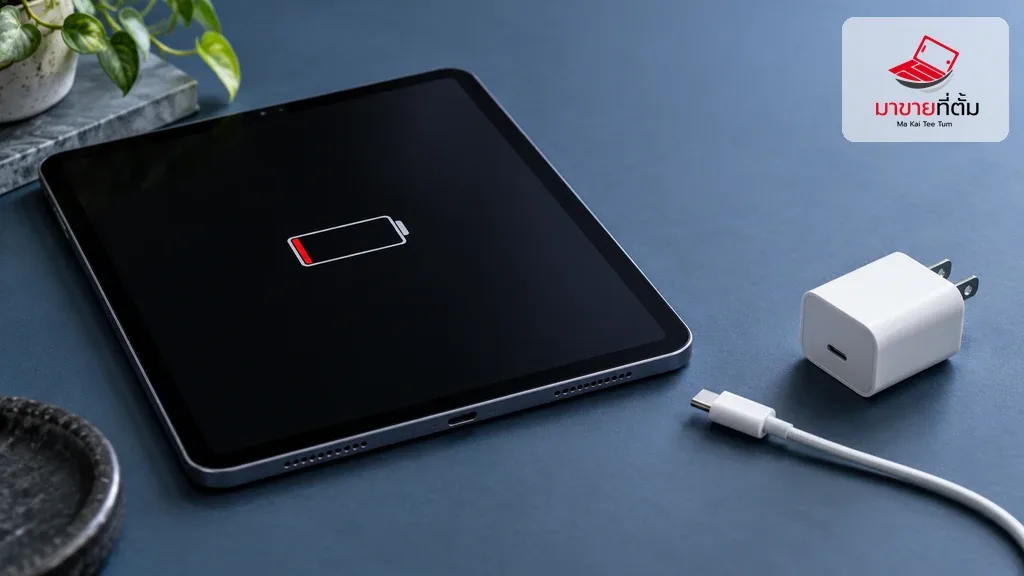
When an iPad will not charge, first look for the charging symbol, then check the power source, cable, and adapter one at a time. A computer that is off or asleep may not provide power, and an iPad that is too hot or cold may not charge normally.
Work through these checks in order
- Connect the iPad with a working USB cable to a power adapter plugged into a working outlet or another suitable power source, then look for the charging icon.
- Check the cable and adapter for looseness, damage, or bent parts. If using a computer, make sure it is on and awake; try another outlet or compatible cable and adapter.
- If no charging icon appears, try another suitable adapter or cable and visually inspect the port. Do not scrape inside it with a hard object or connect a cable if you suspect liquid is present.
- Let the iPad return to a normal temperature and leave it connected to power for a while. If it is unusually hot or cold, wait for it to return to an acceptable temperature before trying again.
- If charging still does not start, force restart by model: on an iPad without a Home button, press and quickly release the volume button nearest the top button, then the other volume button, then hold the top button until it restarts; on a model with a Home button, hold Home and the top button until the Apple logo appears.
When to get more help
If the iPad still shows no charging indication with a known working power source and cable, or the port is loose, scorched, or has been exposed to liquid, stop troubleshooting and contact Apple Support or arrange an inspection.
Have an Apple device assessed before upgrading
If you are considering another Apple device, Makaiteetum can assess your iPad or other Apple hardware. Call 064-564-7945 or contact Line @KunTum.
References
Apple Support’s steps for an iPad that won’t charge: