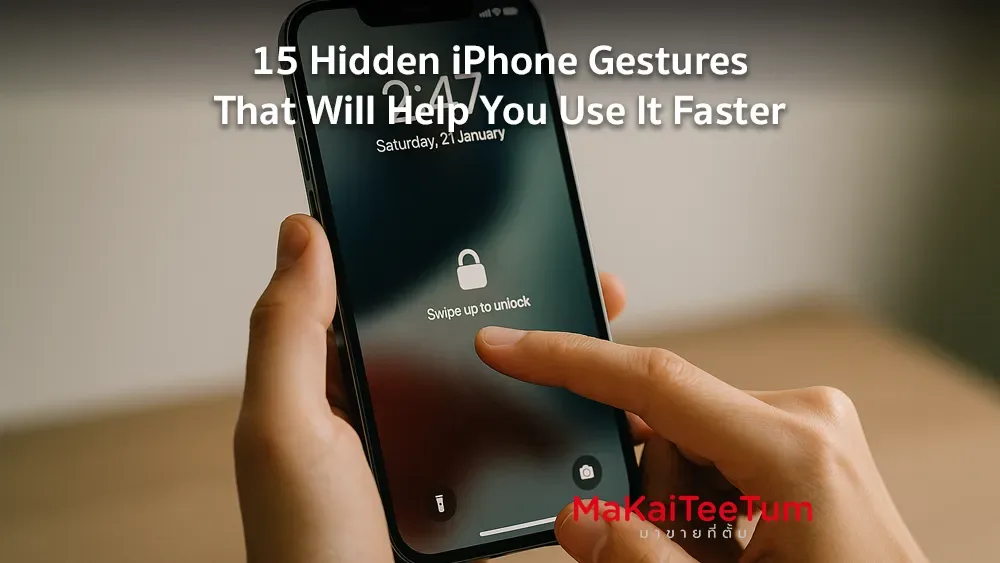
Your iPhone comes with many powerful gestures that most users overlook. These hidden iPhone gestures can help you navigate, multitask, and control your device faster than ever. Let’s explore 15 useful iPhone gestures that will make your daily use smoother and more efficient.
1. Quickly Switch Between Apps
How to use: Swipe left or right along the bottom edge of the screen
Why it helps: Jump between recently used apps without using the App Switcher
2. Access the App Switcher
How to use: Swipe up from the bottom and pause at mid-screen
Why it helps: Manage and close open apps quickly
3. Return to Home Screen
How to use: Swipe up from the very bottom edge of the screen
Why it helps: Instantly return to the home screen from any app
4. Open Control Center
How to use: Swipe down from the top-right corner
Why it helps: Access Wi-Fi, brightness, volume, and other controls quickly
5. View Notification Center
How to use: Swipe down from the top-left corner of the screen
Why it helps: Stay updated with your latest notifications
6. Turn Your Keyboard into a Trackpad
How to use: Tap and hold the spacebar on the keyboard to move the text cursor
Why it helps: Precise editing without tapping in the text field
7. Select Multiple Items with Two Fingers
How to use: In apps like Mail or Notes, tap and drag with two fingers to select multiple items
Why it helps: Quickly manage bulk items
8. Use Three-Finger Gestures to Copy, Cut, Paste
- Copy: Pinch with three fingers
- Cut: Double pinch
- Paste: Spread three fingers apart
Why it helps: Control text actions without using menu options
9. Undo or Redo with Three-Finger Swipes
- Undo: Swipe left with three fingers
- Redo: Swipe right with three fingers
Why it helps: Make corrections easily and instantly
10. Use Back Tap Shortcuts
How to use: Settings > Accessibility > Touch > Back Tap. Assign functions like screenshot or flashlight to a double/triple tap on the back of your iPhone.
Why it helps: Turn your phone’s back into a quick shortcut trigger
11. Tap Status Bar to Scroll to Top
How to use: Tap the clock or top of your screen
Why it helps: Instantly jump back to the top of a long page or feed
12. One-Handed Keyboard Mode
How to use: Long-press the globe or emoji icon on the keyboard and choose left or right mode
Why it helps: Easier typing when holding your iPhone with one hand
13. Close Apps from the App Switcher
How to use: Swipe up on apps in App Switcher to close them
Why it helps: Free up memory and potentially improve battery life
14. Use AssistiveTouch for Shortcuts
How to use: Settings > Accessibility > Touch > AssistiveTouch
Why it helps: Get custom quick-access buttons on your screen
15. Enable Reachability
How to use: Swipe down on the bottom edge of the screen
Why it helps: Brings the top half of the screen down for easier one-hand access
Want More iPhone Tricks or Need to Sell Your iPhone?
We help users like you get the most out of their iPhones. If you’re looking to sell your iPhone or learn more shortcuts, contact MaKaiTeeTum today.
- Call: 064-564-7945
- Line ID: @KunTum