Battery draining fast? You’re not alone. iPhone users often face short battery life, especially with heavy use or poor signal conditions. This comprehensive guide covers all the essential settings and expert tips to extend your iPhone battery life effectively.
1. Enable Low Power Mode
This mode reduces background activity like mail fetch, app refresh, and screen brightness to save power.
- Go to Settings > Battery and turn on Low Power Mode
- Your battery icon will turn yellow when enabled
2. Adjust Screen Brightness and Enable Auto-Brightness
The display uses a significant amount of power. Dimming it or enabling auto-brightness can save battery.
- Swipe to access the Control Center and reduce brightness manually
- Go to Settings > Accessibility > Display & Text Size and enable Auto-Brightness
3. Disable Background App Refresh
This feature allows apps to update in the background, consuming unnecessary battery.
- Go to Settings > General > Background App Refresh
- Select Off or disable for specific apps
4. Manage Location Services
GPS usage drains the battery fast. Limit it to only essential apps.
- Go to Settings > Privacy & Security > Location Services
- Set non-essential apps to While Using or Never
5. Set Auto-Lock Time
Shorter auto-lock times prevent your screen from staying on too long.
- Go to Settings > Display & Brightness > Auto-Lock
- Select 30 seconds or 1 minute
6. Turn Off Unnecessary Notifications
Frequent notifications can wake your screen repeatedly, consuming power.
- Go to Settings > Notifications
- Disable alerts for apps that are not essential
7. Use Wi-Fi Instead of Cellular Data
Wi-Fi consumes less power than mobile networks. Use it when available.
- Enable Wi-Fi in Settings > Wi-Fi
8. Turn Off Bluetooth, AirDrop, and Siri
These features can consume power even in the background.
- Turn off Bluetooth: Settings > Bluetooth
- Turn off AirDrop: Settings > General > AirDrop and set to Receiving Off
- Turn off “Hey Siri”: Settings > Siri & Search
9. Use Dark Mode (for OLED Displays)
Dark Mode can reduce power usage on OLED screens.
- Go to Settings > Display & Brightness and select Dark
10. Check Battery Usage by App
Identify which apps consume the most power and manage usage accordingly.
- Go to Settings > Battery
- View usage stats per app
11. Avoid High Temperatures
Using iPhone in temperatures above 35°C can degrade battery health.
- Avoid using or charging the device in direct sunlight or hot environments
- Let your phone cool down if it gets too hot
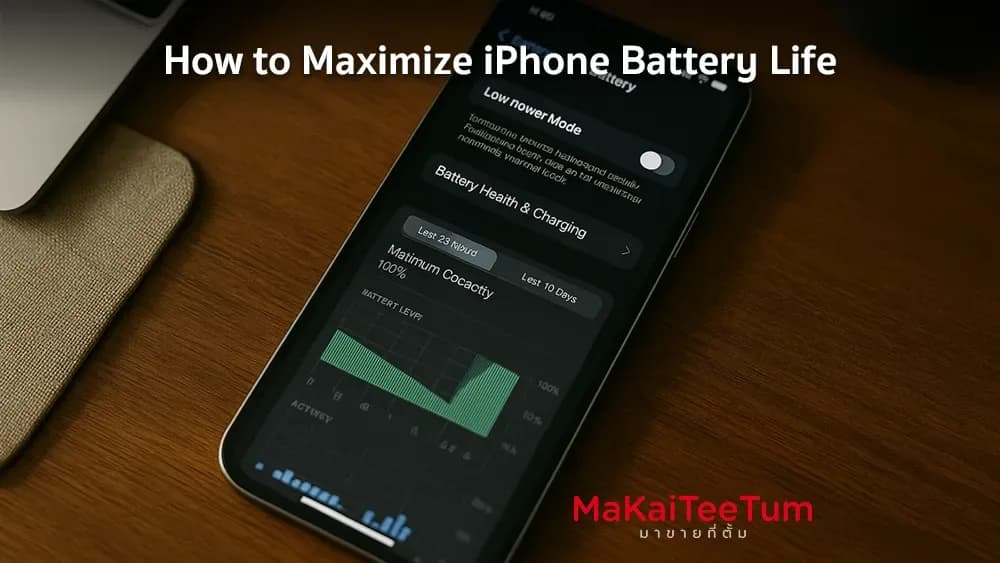
12. Enable Optimized Battery Charging
This feature reduces battery aging by learning your charging habits.
- Go to Settings > Battery > Battery Health & Charging
- Turn on Optimized Battery Charging
Conclusion
By adjusting just a few settings, you can greatly extend your iPhone’s battery life. Try these steps today to make the most of every charge and improve overall battery health.
Planning to Upgrade Your iPhone? Sell Your Old One with MaKaiTeeTum!
Looking for a new iPhone? Sell your old device with MaKaiTeeTum for the best price, quick service, and reliable support—whether it’s an official or imported model.
- Call: 064-564-7945
- Line ID: @KunTum