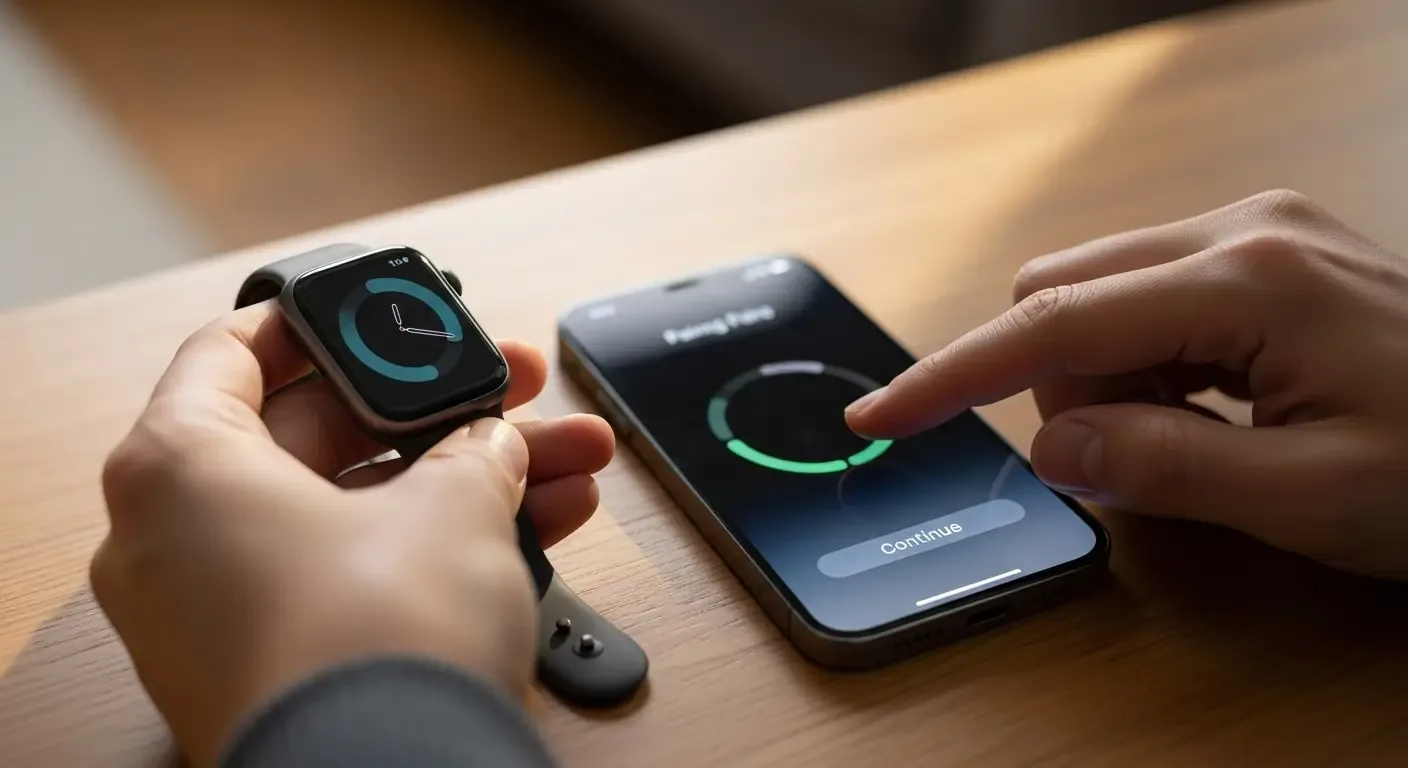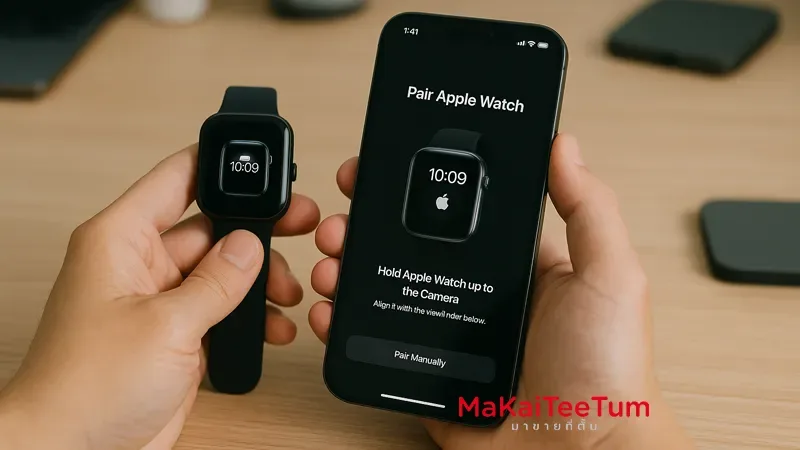
The Health App is a powerful tool for iPhone and Apple Watch users who want to track and analyze their health data in detail. Whether you’re monitoring your heart rate, tracking daily activity, or analyzing your sleep patterns, the Health App helps you better understand your body. In this guide, we’ll walk you through the best techniques for using the Health App to optimize your health tracking and maximize its features.
What is the Health App and Why Should You Use It?
The Health App is a built-in iPhone application designed to track various health metrics. It gathers data from your Apple Watch, iPhone, and third-party health apps to provide a comprehensive overview of your wellness. Key benefits include:
- Real-time health tracking
- Long-term health trend analysis
- Integration with third-party health and fitness apps
- Essential features like Medical ID and Cycle Tracking
Setting Up and Using the Health App
Initial Health App Setup
- Open the Health App on your iPhone
- Go to Summary and select Set Up Your Health Profile
- Enter basic details like age, weight, height, and health goals
- Enable Health Data Sharing to sync data from other health apps
Syncing with Other Devices
The Health App can collect data from Apple Watch, Fitbit, and other health apps by:
- Navigating to Settings > Privacy & Security > Health and enabling app access
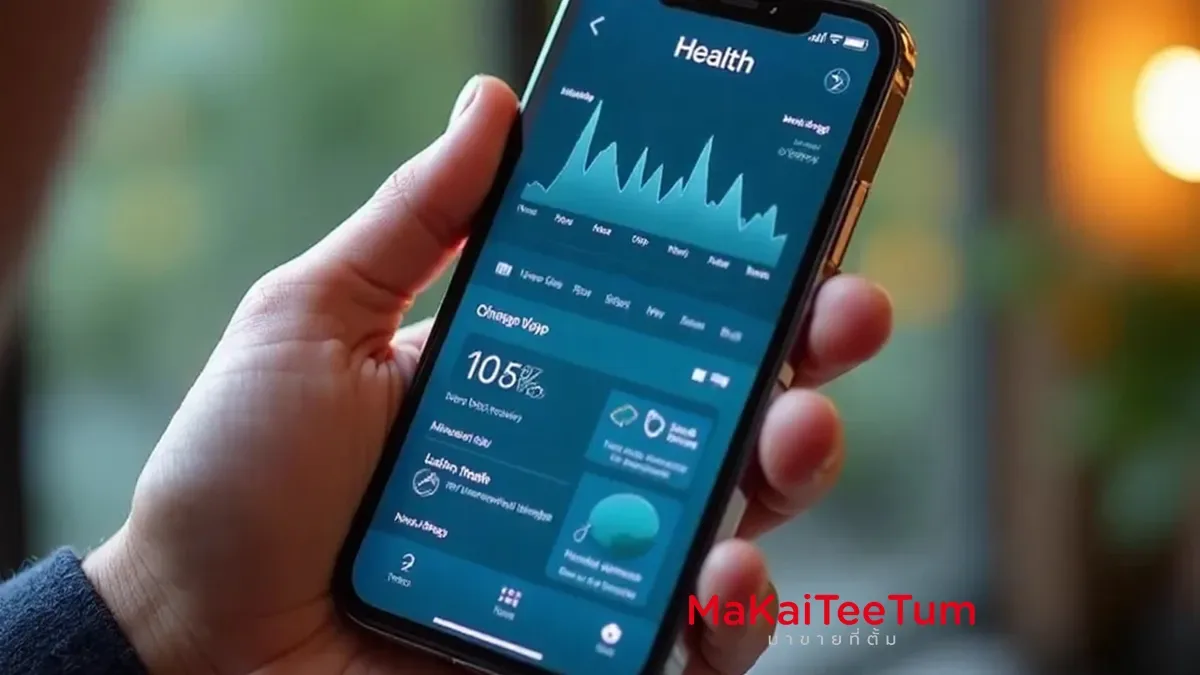
Techniques for Using the Health App to Analyze Health Data
Tracking and Analyzing Heart Rate
- If you have an Apple Watch, view Heart Rate Trends in the Health App
- Analyze resting and active heart rate trends
- Use Heart Rate Variability (HRV) to assess stress levels
Measuring Activity and Workouts
- The Health App displays step count, calories burned, and movement time
- View workout statistics like walking, running, and cycling in the Summary tab
Monitoring Sleep Patterns
- With Apple Watch or a sleep tracker, view Sleep Analysis in the Health App
- Compare sleep duration and quality over time
- Set Sleep Schedule to establish a consistent bedtime routine
Checking Blood Oxygen (SpO2) and ECG Readings
- Users with Apple Watch Series 6 or later can monitor blood oxygen levels
- Take ECG (Electrocardiogram) readings to detect abnormal heart rhythms
Logging Nutrition and Weight Data
- The Health App allows you to track calorie intake and nutrient consumption
- Sync with nutrition apps like MyFitnessPal or Lifesum for automatic logging
Cycle Tracking for Women’s Health
- Use the Cycle Tracking feature to log menstrual cycles and symptoms
- Predict upcoming cycles and ovulation windows based on past data
How to Analyze Health Data in the Health App
The Health App provides Trends and Insights to analyze health data effectively:
- View graphs and trends for each health metric
- Compare different health metrics using Compare Metrics
- Receive personalized recommendations based on your data
Tips for Maximizing the Health App’s Potential
- Enable Health Notifications to receive real-time health alerts
- Set up Medical ID for emergency access to critical health data
- Sync with fitness apps like Strava, Nike Run Club, or Fitbit for better tracking
Troubleshooting: When the Health App Doesn’t Display Data
- Ensure Motion & Fitness Tracking is enabled in Settings > Privacy & Security > Motion & Fitness
- Restart your iPhone and Apple Watch to refresh data
- Update iOS and watchOS to the latest version
References: Apple Official Website, MacRumors, iMore, 9to5Mac