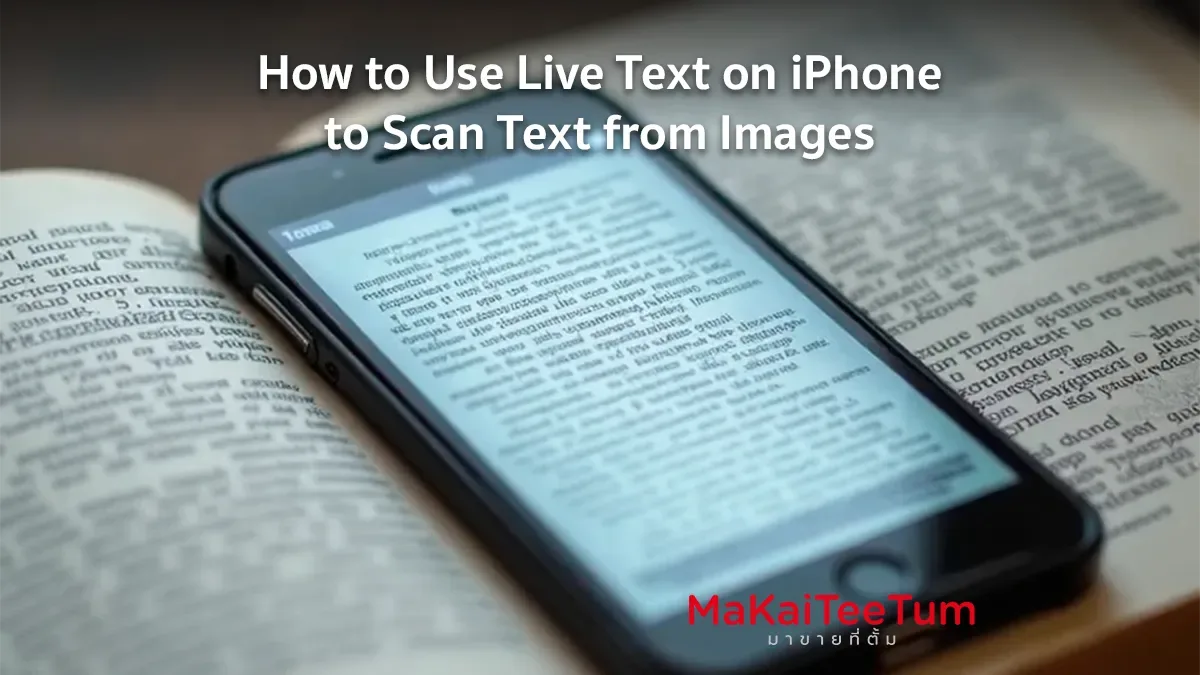
Live Text is a powerful feature introduced with iOS 15 and improved in iOS 16 and 17. It allows users to scan and extract text directly from images or videos, making it easy to copy, translate, search, or share information instantly. Whether you need to extract details from a document, translate foreign language text, or call a phone number from an image, Live Text simplifies the process. This article provides an in-depth guide on how to use Live Text effectively, with step-by-step instructions and expert tips.
What is Live Text?
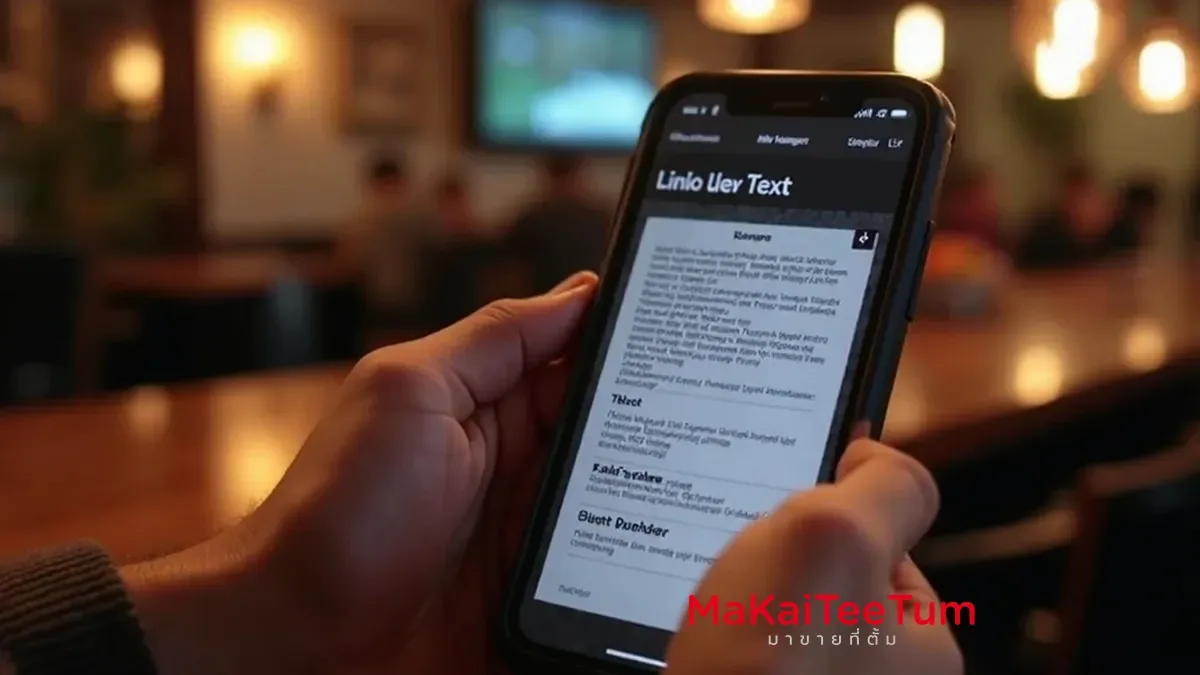
Live Text is an Optical Character Recognition (OCR) feature powered by Apple’s AI, enabling iPhones to detect and extract text from photos, screenshots, and even real-time camera views. This makes it an essential tool for students, professionals, and anyone who frequently deals with textual information.
Devices Compatible with Live Text
Live Text is available on iPhones and iPads running iOS 15 or later, specifically those equipped with an A12 Bionic chip or newer, including:
- iPhones: iPhone XR, XS, 11, 12, 13, 14, 15, and newer models
- iPads: iPads with iPadOS 15 or later and A12 Bionic chip or newer
How to Enable Live Text
Live Text is typically enabled by default, but you can manually activate it through the following steps:
- Open Settings on your iPhone
- Go to General > Language & Region
- Toggle Live Text ON
How to Use Live Text to Scan Text from Images
1. Using Live Text in the Camera App
- Open the Camera app
- Point your camera at the text you want to scan
- When Live Text detects text, a Live Text icon (🔲📖) appears at the bottom-right corner
- Tap the icon to highlight the detected text
- Select Copy, Look Up, Translate, or Share as needed
2. Using Live Text in the Photos App
- Open the Photos app and select an image with text
- Tap and hold on the text in the image
- Live Text will highlight the selectable text
- Choose an action: Copy, Look Up, Translate, or Share
3. Using Live Text on Safari and Screenshots
- Live Text can recognize text from images in Safari or screenshots. Simply tap the text to copy or take further action.
Additional Features of Live Text
Translating Text
Live Text supports Apple Translate and Google Translate for real-time translations:
- Tap the detected text
- Select Translate to get an instant translation
Searching for Information (Look Up)
- Tap a phrase or keyword and choose Look Up to find relevant details online
Calling Phone Numbers from Images
- If an image contains a phone number, tap it and select Call to dial directly
Pro Tips for Maximizing Live Text Efficiency
- Use Live Text for Documents: Scan receipts, business cards, or official documents for quick text extraction
- Screenshot and Extract Text: If Live Text doesn’t work in an app, take a screenshot and use Live Text from the Photos app
- Sync with Notes and Reminders: Copy extracted text directly into Notes or Reminders for future reference
Troubleshooting Common Live Text Issues
Live Text Not Working
- Ensure your iPhone supports Live Text
- Check if Live Text is enabled under Settings > Language & Region
- Restart your iPhone and try again
Text Not Being Recognized
- Ensure the image is clear and well-lit
- Adjust the angle or move the camera closer
Translation Not Working
- Check internet connectivity
- Update to the latest iOS version
References: Apple Official Website, MacRumors, iMore, 9to5Mac