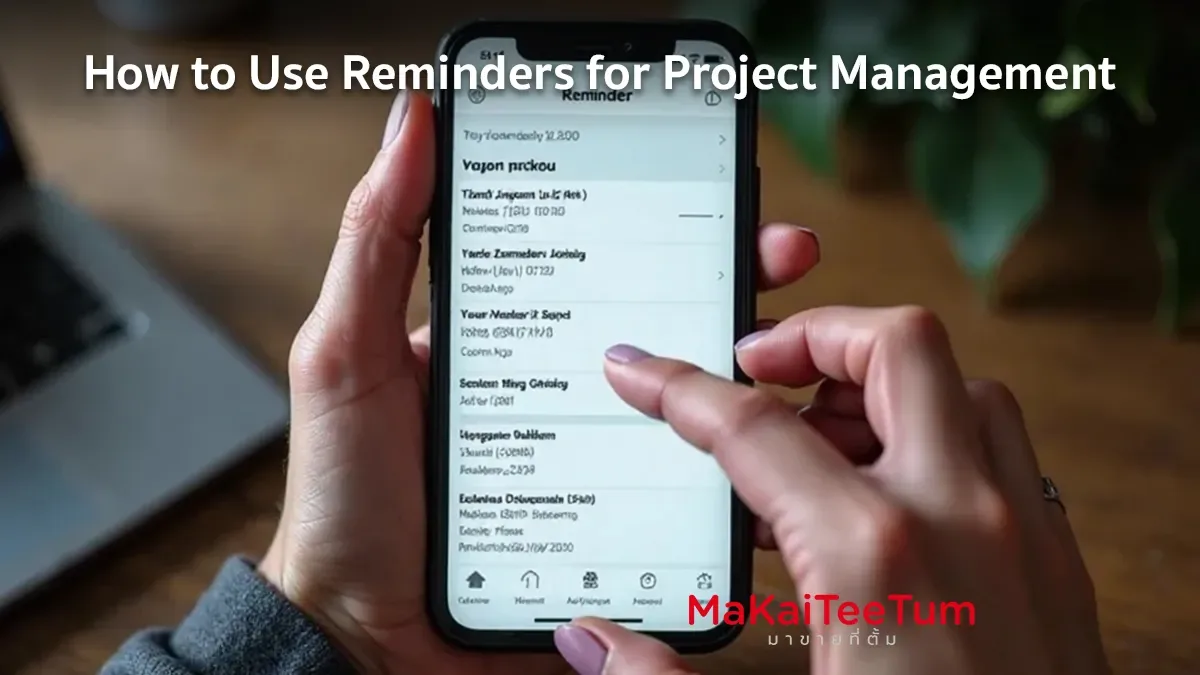
The Reminders app on iPhone, iPad, and Mac is more than just a simple to-do list tool—it’s a powerful project management assistant. With features like task lists, due date reminders, tags, and collaboration options, you can plan, track, and manage projects with ease.
In this guide, you’ll learn how to use Reminders for project management, from setting up new projects to applying advanced productivity techniques that will help you stay organized and focused.
What is the Reminders App and Why Is It Great for Project Management?
Reminders is Apple’s built-in task management app available on iOS, iPadOS, and macOS that allows users to create to-do lists and receive smart notifications for task reminders. Key benefits for project management include:
- Free and easy to use – Pre-installed on all Apple devices
- iCloud Sync – Works seamlessly across iPhone, iPad, Mac, and Apple Watch
- Smart notifications – Alerts based on time, location, or contextual triggers
- Collaboration support – Share lists with teams for better project tracking
How to Create a New Project in Reminders
Creating a Task List for a Project
- Open the Reminders app on your Apple device.
- Tap ”+ (Create List)”, then name your project (e.g., “Q3 Marketing Plan”).
- Choose a color and icon to personalize the project list.
Adding Tasks to a Project
- Open the project list.
- Tap “New Reminder” and enter a task (e.g., “Prepare marketing presentation”).
- Tap the “i” icon to add details like due date, priority, and subtasks.
Pro Tips for Using Reminders Effectively in Project Management
Use Tags for Better Organization
- Add tags like #Marketing, #Clients, #Meeting to categorize tasks and find them quickly.
Set Up Smart Notifications
- Time-based reminders: Set a deadline to receive a notification.
- Location-based reminders: Get alerts when you arrive at work or a meeting venue.
- Message-triggered reminders: Get notified when chatting with a specific contact in Messages.
Use Subtasks to Break Down Workflows
- Example: Main Task: “Prepare Presentation”
- ✅ Subtask 1: Create slides
- ✅ Subtask 2: Review content
- ✅ Subtask 3: Practice the delivery
Share Project Lists for Collaboration
- Tap “Share (Share List)” and invite team members to view or edit project tasks.
Examples of Using Reminders for Different Project Types
- Project Type
- Work Projects
- Marketing Campaigns
- Event Planning
- Personal Projects
- How to Use Reminders
- Create task lists with due dates and tags
- Divide tasks into subtasks
- Set up location-based reminders for venue checks
- Use priority levels and recurring reminders for long-term tasks
- Project Type
-
Work Projects
-
Marketing Campaigns
- Event Planning
- Personal Projects
- How to Use Reminders
- Create task lists with due dates and tags
- Divide tasks into subtasks (e.g., content creation, social media strategy)
- Set up location-based reminders for venue checks
- Use priority levels and recurring reminders for long-term tasks
-
Project Type
- Work Projects
-
Marketing Campaigns
-
Event Planning
- Personal Projects
- How to Use Reminders
- Create task lists with due dates and tags
- Divide tasks into subtasks (e.g., content creation, social media strategy)
- Set up location-based reminders for venue checks
- Use priority levels and recurring reminders for long-term tasks
Using Reminders on macOS for Professional Project Management
- Drag & Drop: Move tasks from Notes or Mail into Reminders.
- Siri Integration: Use voice commands like “Remind me to send an email at 2 PM.”
- Focus Mode: Silence unnecessary notifications to concentrate on project work.
Common Issues and How to Fix Them
1. Reminders Not Syncing Across Devices
- Check that iCloud Sync is enabled in Settings > Apple ID > iCloud > Reminders.
2. Cannot Share Lists with Team Members
- Ensure the recipient uses an Apple ID and has iCloud enabled for Reminders.
3. Notifications Not Working
- Go to Settings > Notifications > Reminders and enable Allow Notifications.
Frequently Asked Questions About Using Reminders for Project Management
Q: Can Reminders replace other task management apps like Todoist or Trello?
A: Yes, if you mainly use Apple devices, but for advanced workflow automation, other tools may offer more flexibility.
Q: Does Reminders support recurring reminders?
A: Yes, you can set tasks to repeat daily, weekly, or on specific workdays.
Q: Is there an Android version of Reminders?
A: No, the Reminders app is exclusive to Apple devices.
References: