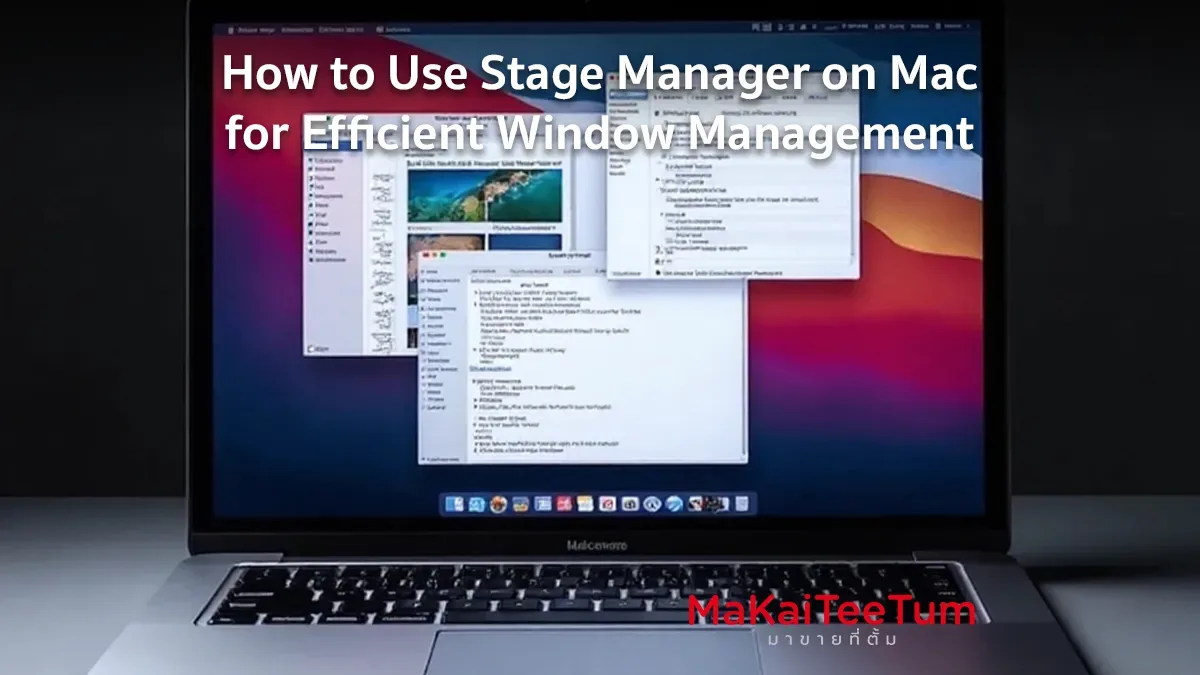
Stage Manager is a powerful window management feature introduced in macOS Ventura that helps users keep their desktop organized, improve productivity, and quickly switch between apps. It allows you to focus on one main app while keeping other open apps minimized on the left side of the screen. In this guide, we’ll cover everything you need to know about using Stage Manager on Mac, from enabling it to advanced tips for optimizing your workflow.
What is Stage Manager and How Does It Work?
Stage Manager is a macOS feature designed to organize open windows by displaying the active app in the center while keeping other open apps minimized in a sidebar on the left. This helps reduce desktop clutter and makes it easier to focus on tasks.
Mac Models That Support Stage Manager
Stage Manager is only available on select Mac models running macOS Ventura or later, including:
- MacBook Air (M1, M2, and later)
- MacBook Pro (M1, M2, and later)
- iMac (M1 and later)
- Mac Mini (M1, M2, and later)
- Mac Studio and Mac Pro (with macOS Ventura or later)
How to Enable Stage Manager on Mac
Enable Stage Manager from Control Center
- Click the Control Center icon in the top-right corner of the screen.
- Select Stage Manager from the menu.
- Toggle Stage Manager ON to activate the feature.
Enable Stage Manager from System Settings
- Go to System Settings > Desktop & Dock.
- Scroll down to Stage Manager and enable it.
- Customize additional settings, such as whether to show recent windows.
How to Use Stage Manager to Manage Windows
Switching Between Apps Using Stage Manager
- Click the app icons on the left sidebar to switch between different open applications.
- Use Mission Control (F3 key) to view all open windows.
Grouping Apps in Stage Manager
- Drag an app on top of another to create a group of apps.
- Switch between different app groups with a single click.
Customizing Stage Manager Settings
- Right-click the Stage Manager icon in Control Center to adjust settings.
- Choose whether to hide or show minimized apps on the screen.
Comparing Stage Manager with Other Window Management Features on Mac
- Feature
-
Stage Manager
-
Mission Control
- Split View
- Benefits
-
Auto-organizes windows
- Displays all open windows at once
- Allows two apps side by side for multitasking
- Limitations
- Only available on macOS Ventura+
- Can become overwhelming with many apps
- Limited to two apps at a time
- Feature
- Stage Manager
- Mission Control
-
Split View
- Benefits
- Auto-organizes windows
- Displays all open windows at once
- Allows two apps side by side for multitasking
- Feature
- Stage Manager
-
Mission Control
- Split View
- Limitations
- Only available on macOS Ventura+
- Can become overwhelming with many apps
- Limited to two apps at a time
Pro Tips for Using Stage Manager Effectively
- Use Mission Control (F3) – Combine Stage Manager with Mission Control for a seamless multitasking experience.
- Create Keyboard Shortcuts – Go to System Settings > Keyboard > Shortcuts to set up a shortcut for Stage Manager.
- Use Multiple Displays – Stage Manager works with multiple monitors and can be configured to display on specific screens.
How to Disable Stage Manager
- Open Control Center > Stage Manager and toggle it OFF.
- Or go to System Settings > Desktop & Dock > Stage Manager and disable the feature.
Common Issues & Troubleshooting Tips
Stage Manager Not Showing in Control Center
- Ensure your Mac is running macOS Ventura or later.
- Restart your Mac and check again.
Stage Manager is Slow or Lagging
- Close unnecessary apps to free up system resources.
- Clear cache files and restart your Mac.
Frequently Asked Questions About Stage Manager
Q: Can I use Stage Manager with all apps?
A: Most apps work with Stage Manager, but some apps that require multiple windows may not function as expected.
Q: Can I use Stage Manager alongside Split View?
A: No, Stage Manager and Split View cannot be used simultaneously—you must choose one.
References: