In today’s digital era, cloud storage has become essential. For Apple users, iCloud is not just convenient for storing and accessing files but also ensures secure backups and efficient storage management. Using iCloud correctly helps keep your data safe, organized, and accessible across devices.
What is iCloud?
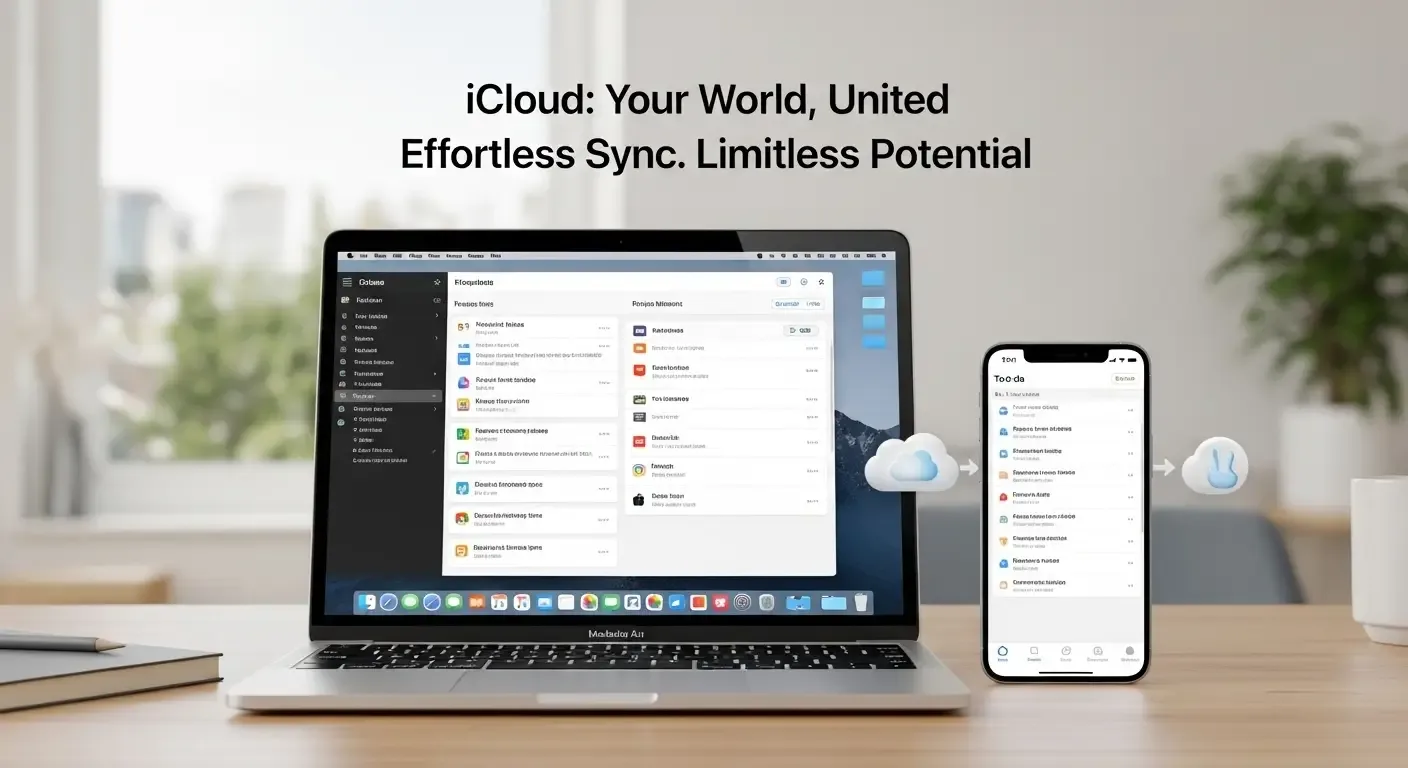
iCloud is Apple’s cloud storage service that stores photos, videos, files, and documents, and syncs them across all Apple devices — iPhone, iPad, Mac, and even Windows through a browser.
Benefits of Using iCloud
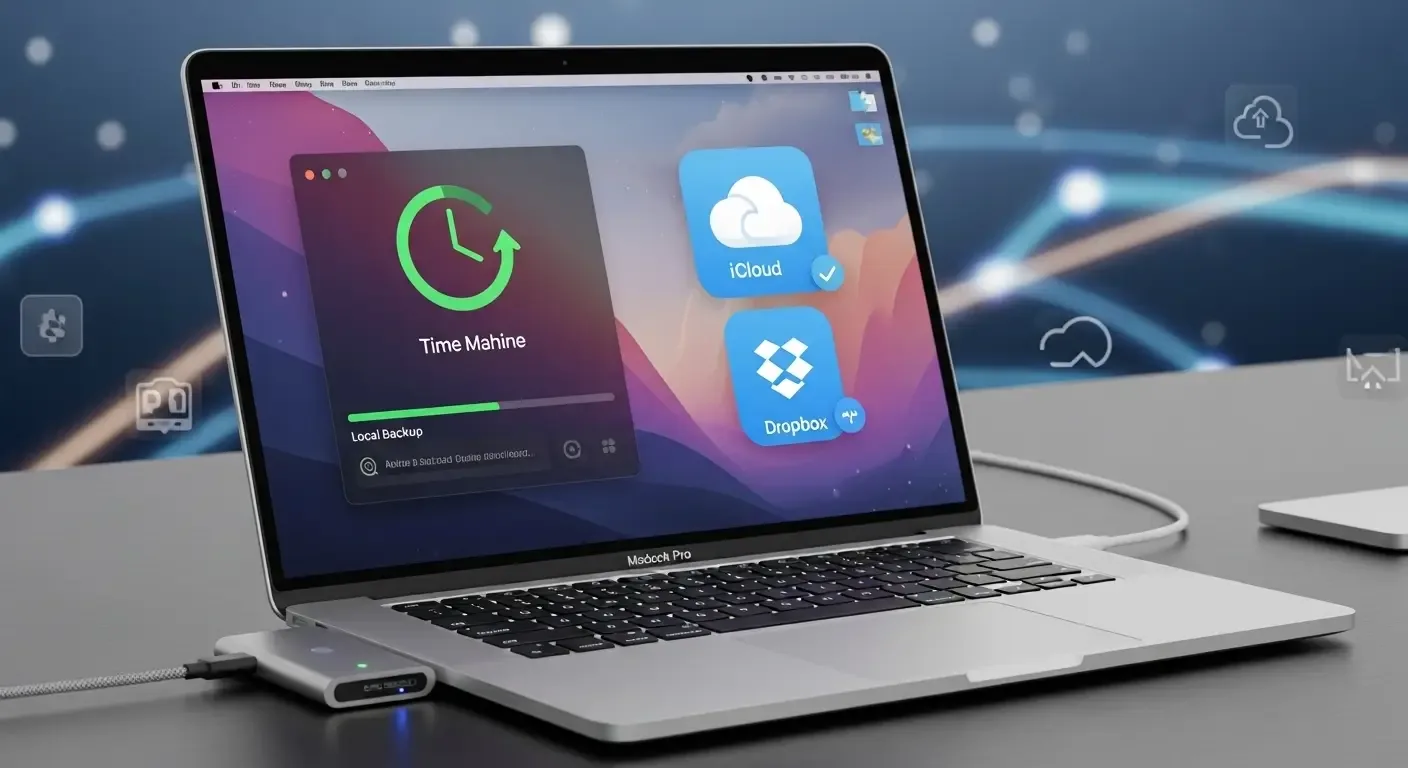
- Automatic Backup: iCloud automatically backs up iPhone/iPad when connected to Wi-Fi and charging.
- Cross-device Sync: Contacts, calendars, notes, and apps sync seamlessly between devices.
- Organized Photo Storage: iCloud Photos keeps all images and videos accessible everywhere.
- File Access: Via the Files app or iCloud Drive on both Mac and Windows.
How to Set Up and Use iCloud
1. Sign in to iCloud
Sign in with your Apple ID on a new Apple device. iCloud connects automatically, or go to Settings > [Your name] > iCloud to manage features.
2. Enable Key iCloud Features
- Photos: Store photos in the cloud
- iCloud Backup: Back up device data
- iCloud Drive: Store and manage documents
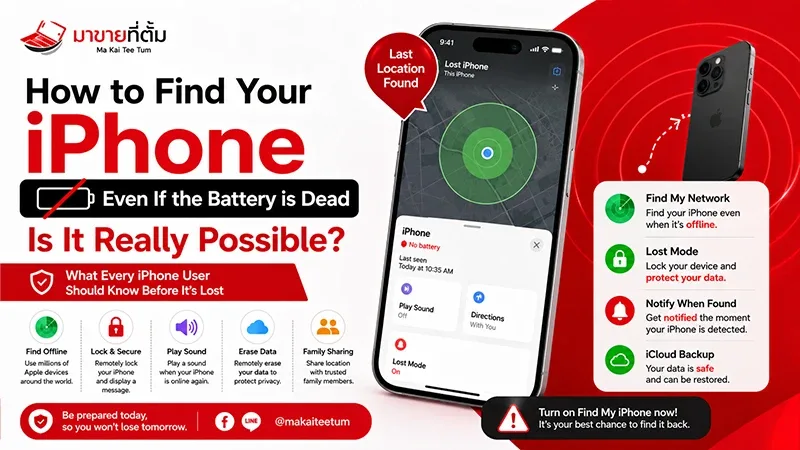
- Find My iPhone: Track lost devices
Tips for Managing iCloud Efficiently
1. Monitor Storage Regularly
Check Settings > [Your name] > iCloud > Manage Storage to review apps consuming space and adjust settings.
2. Delete Unnecessary Data
- Remove old backups
- Clear junk emails from iCloud Mail
- Delete or move unwanted photos/videos
3. Use Optimize iPhone Storage
Keep full-resolution photos in iCloud while saving space on your device with optimized thumbnails.
4. Organize iCloud Drive
Create folders by category (e.g., personal, work, official) and regularly clean out unused files.
5. Upgrade iCloud+ if Needed
Apple provides 5GB free, with plans starting at 50GB, 200GB, and 2TB for heavier users.
Keep iCloud Secure
- Enable two-factor authentication
- Avoid unsecured public Wi-Fi
- Never share your Apple ID
Using iCloud on Non-Apple Devices
You can access iCloud on Windows PC by downloading iCloud for Windows from the Microsoft Store and signing in with your Apple ID.
FAQ
Q: How is iCloud different from Google Drive?
A: iCloud is deeply integrated with Apple devices and offers real-time backups, Find My, and system-level sync. Google Drive is better for cross-platform usage.
Q: What if I forget my iCloud password?
A: Go to https://iforgot.apple.com to reset your password with identity verification.
Q: Can iCloud Backup work with older iPhones?
A: Yes, iCloud works with iOS 10 and above. Updating to the latest iOS is recommended.
Conclusion
iCloud is a powerful and essential tool for Apple users. With proper setup and management, you can securely store, organize, and access your data anytime. Mastering iCloud’s features ensures a smoother, safer, and more efficient digital experience.