In today’s fast-moving tech landscape, many people are turning to the iPad as their primary work device—whether for documents, meetings, design, or even coding. But the big question remains: Can an iPad really replace a computer? This article takes a closer look at the advantages, limitations, and best practices for using an iPad effectively in place of a laptop or desktop computer.
\n\n
Advantages of Using an iPad Instead of a Computer
\n
- \n
- Portability: Lightweight and compact, perfect for frequent travelers.
- Long battery life: Typically 8–10 hours on a single charge.
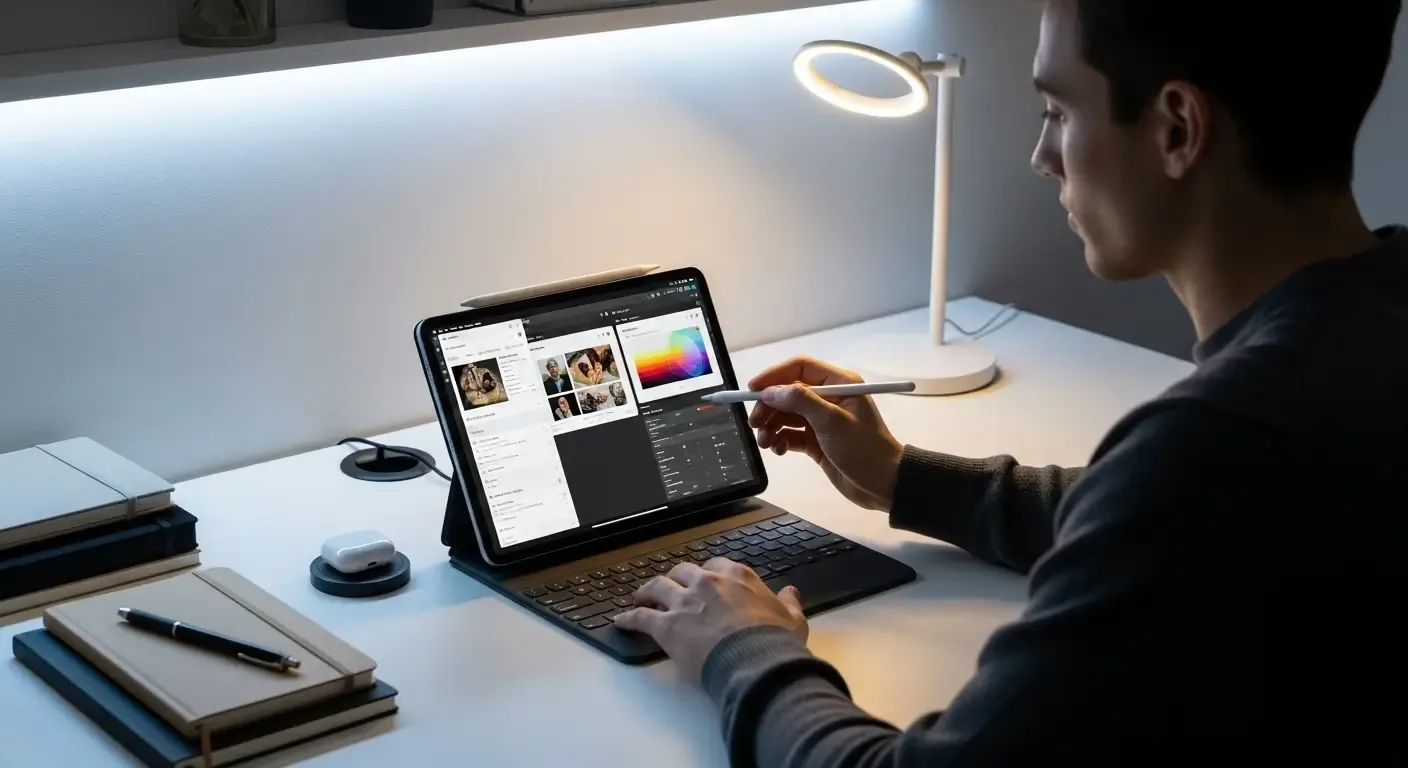
- Apple Pencil support: Great for students, designers, and note-takers.
- Wide range of productivity apps: From Microsoft Office and Notion to Lightroom and LumaFusion.
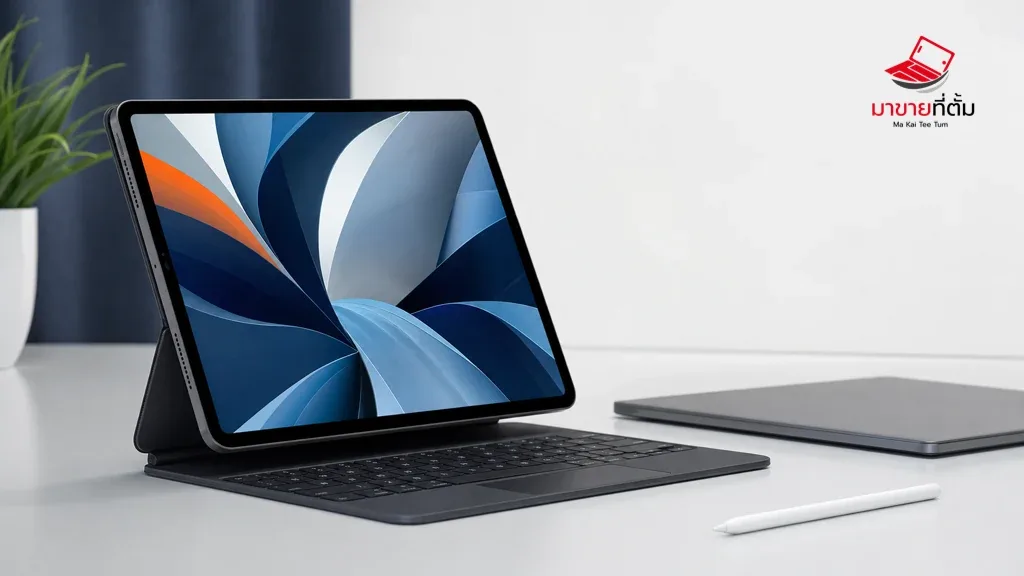
- Magic Keyboard compatibility: Provides a near-laptop typing experience.
\n
\n
\n
\n
\n
\n\n
Limitations Compared to a Computer
\n
- \n
- File system limitations: Less flexible than macOS or Windows for file management.
- Pro-level software restrictions: Apps like Adobe After Effects or full Visual Studio aren’t available.
- Multitasking constraints: Split View and Stage Manager help, but still less versatile than desktop OS.
- Cost with accessories: Adding an Apple Pencil and Magic Keyboard can bring the price close to a MacBook.
\n
\n
\n
\n
\n\n
Types of Work Where iPads Shine
\n
1. Documents and Meetings
\n
Apps like Microsoft Word, Excel, and Google Docs work smoothly on iPad. Video conferencing tools such as Zoom and Microsoft Teams are also well-supported.
\n\n
2. Design and Graphics
\n
Procreate, Affinity Designer, and Adobe Fresco turn iPads into powerful tools for digital artists and designers.
\n\n
3. Mid-Level Video Editing
\n
LumaFusion offers impressive editing power for vloggers and content creators, though not as advanced as Premiere Pro.
\n\n
4. Students and Education
\n
Perfect for note-taking, reading PDFs, and research with apps like GoodNotes, Notability, and Safari.
\n\n
Tips to Make an iPad Work Like a Computer
\n
- \n
- Use a Magic Keyboard or Bluetooth keyboard for typing comfort.
- Take advantage of Stage Manager for multitasking.
- Connect to an external monitor via USB-C (on newer iPad Pro models).
- Leverage Shortcuts app for automation and efficiency.
- Install robust file management apps such as Documents by Readdle.
\n
\n
\n
\n
\n
\n\n
Best iPad Models for Computer Replacement
\n
- \n
- iPad Pro M1 / M2: Powerful chip, high RAM, 120Hz display, supports Stage Manager.
- iPad Air with M1 chip: Lightweight yet powerful for most productivity tasks.
\n
\n
\n\n
Conclusion: iPad Can Replace Computers… to a Point
\n
The iPad is excellent for documents, creative work, and light video editing. However, for advanced professional workflows—such as complex graphic design, in-depth coding, or heavy multitasking—it may fall short. Choosing an iPad as a computer replacement ultimately depends on your job requirements, budget, and personal workflow style.
\n\n
FAQ
\n
Q: Can an iPad replace a laptop for office work?
\n
A: Yes, for most standard tasks like documents, email, and meetings. A keyboard makes it much easier.
\n\n
Q: Do I need an iPad Pro to use it as a computer replacement?
\n
A: Not always. The iPad Air with M1 chip is sufficient for general work.
\n\n
Q: Which professions benefit most from using an iPad instead of a computer?
\n
A: Creative professionals, students, content creators, and those doing standard office tasks benefit the most.