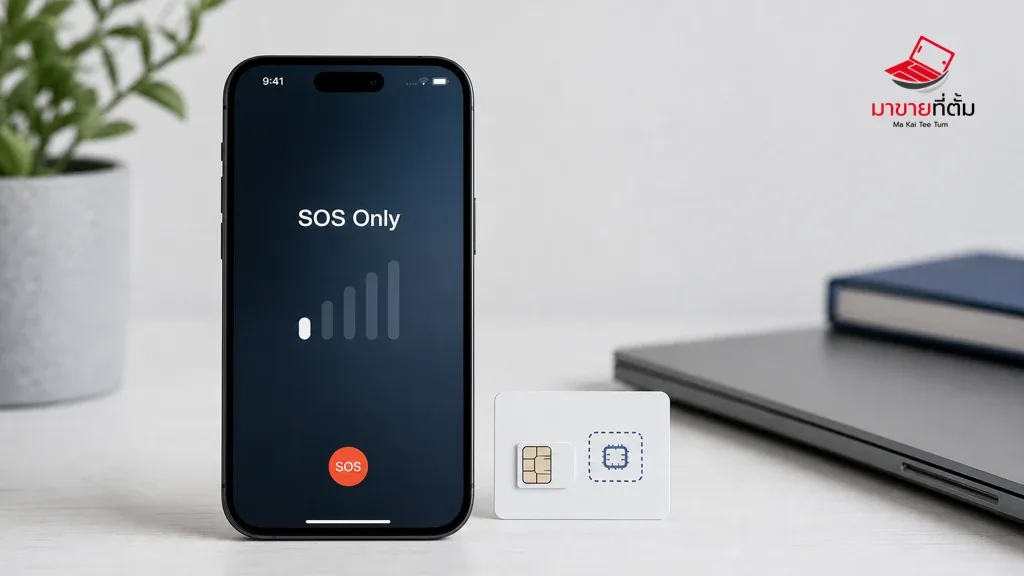
First note whether calls fail for every number or only certain people, and check whether the status bar shows cellular signal or No Service. Coverage gaps, call filtering, and carrier-side issues can look similar, so test one cause at a time before resetting network settings.
Work through these checks in order
- Turn Airplane Mode on, wait about five seconds, and turn it off. Try again; if you are in a weak-signal location, test from another place as well.
- Make sure Do Not Disturb is off. Check that the number is not blocked, and review Call Forwarding and Silence Unknown Callers if incoming calls are affected.
- Check for carrier-settings and iOS updates in the device settings, then install any updates offered.
- If calls still fail, test cellular service in another location and note whether the phone shows signal, No Service, or Searching. Reset network settings only after other checks; this removes saved Wi-Fi passwords and network settings.
- Ask your carrier to check your account, local outages, and service restrictions. Share any error message and when the issue occurs.
When to get more help
If your carrier confirms the account and network are working but calls still fail in multiple locations, or the iPhone has been dropped or exposed to liquid, arrange a device inspection. Avoid erasing the phone or resetting all content to troubleshoot reception before making a backup.
Have an Apple device assessed before upgrading
Considering selling or upgrading an Apple device? Makaiteetum can assess an iPhone or other Apple device to help inform your decision. Call 064-564-7945 or contact Line @KunTum.
References
Apple Support’s call troubleshooting guidance: