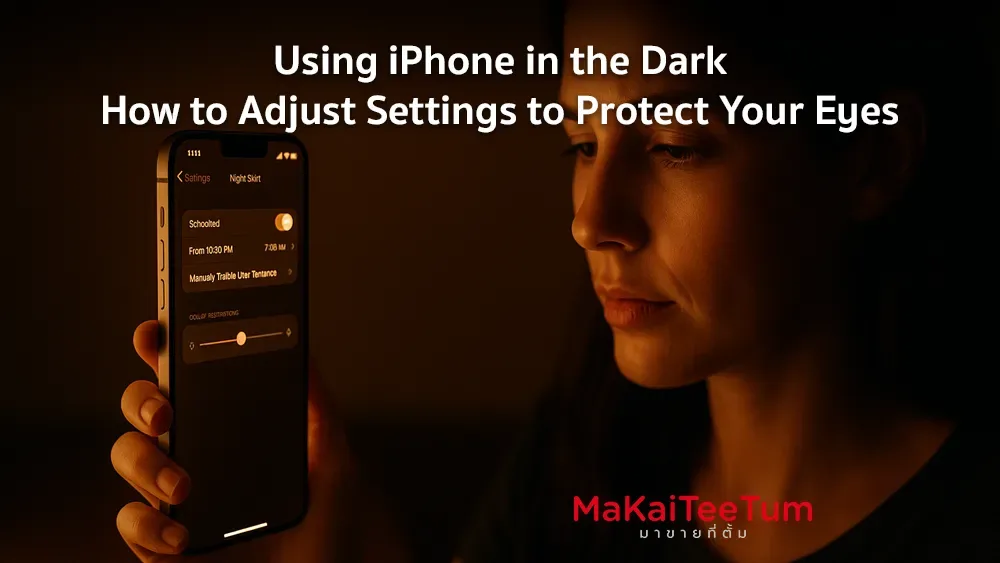
Using your iPhone in low light or dark environments can strain your eyes and affect your sleep quality. This guide provides the best iPhone settings to reduce eye fatigue and enhance nighttime comfort.
1. Enable Night Shift
Night Shift automatically adjusts the screen color temperature to warmer tones during the evening to reduce blue light exposure.
- Go to Settings > Display & Brightness > Night Shift
- Set a custom schedule (e.g., sunset to sunrise)
- Adjust the color temperature slider to your preference
2. Use Dark Mode
Dark Mode switches your display to a black background with light text, making it easier on the eyes in dark settings.
- Go to Settings > Display & Brightness
- Select Dark under Appearance
3. Reduce White Point
This setting decreases the intensity of bright colors, softening the screen brightness overall.
- Go to Settings > Accessibility > Display & Text Size
- Enable Reduce White Point and adjust the level
4. Apply Red Color Filter
Using a red color filter helps minimize blue light and is gentler on the eyes in darkness.
- Go to Settings > Accessibility > Display & Text Size > Color Filters
- Turn on Color Filters and choose Color Tint
- Adjust the intensity and hue toward red
5. Use Screen Distance (iOS 17+)
Screen Distance notifies you when your iPhone is too close to your eyes, helping to reduce eye strain and prevent myopia, especially in children.
- Go to Settings > Screen Time
- Tap Screen Distance and turn it on
6. Set Action Button for Quick Access
If you’re using iPhone 15 Pro or newer, you can configure the Action Button to enable dark mode or Night Shift instantly.
- Go to Settings > Action Button
- Select an action like Night Shift or a shortcut
7. Adjust Screen Brightness
Manually reduce screen brightness to match the lighting around you and minimize glare.
- Open Control Center by swiping down from the top-right corner
- Drag the brightness slider down as needed
8. Follow the 20-20-20 Rule
To reduce digital eye strain, take a 20-second break every 20 minutes by looking at something 20 feet away.
9. Use Third-Party Apps
Apps like f.lux adjust your iPhone’s color temperature throughout the day to reduce blue light exposure automatically.
10. Summary
Optimizing your iPhone’s settings for nighttime use not only enhances comfort but also protects your eyes and promotes better sleep.
Need Help? Contact Us
If you have questions about your iPhone’s features or want to upgrade your device, reach out to us anytime:
- Phone: 064-564-7945
- Line ID: @KunTum