In an age where personal data security is paramount, locking sensitive apps and content on your iPhone is a smart move. This guide covers everything you need to know about setting passwords for the Notes app and securing other apps on your iPhone using built-in Apple features.
1. How to Lock Notes on iPhone
The Notes app allows you to lock individual notes with either your device passcode or a custom password, enhanced with Face ID or Touch ID for quick access.
- Go to Settings > Notes > Password
- Select the account for which you want to set a password
- Choose Use Device Passcode or Create a Custom Password
- Enable Face ID or Touch ID for easier unlocking
Note: If you forget your custom password, Apple cannot recover your locked notes.
2. Locking Individual Notes
Once your password is set, you can lock specific notes by following these steps:
- Open the Notes app and select the note you want to lock
- Tap the More button (three dots icon)
- Select Lock
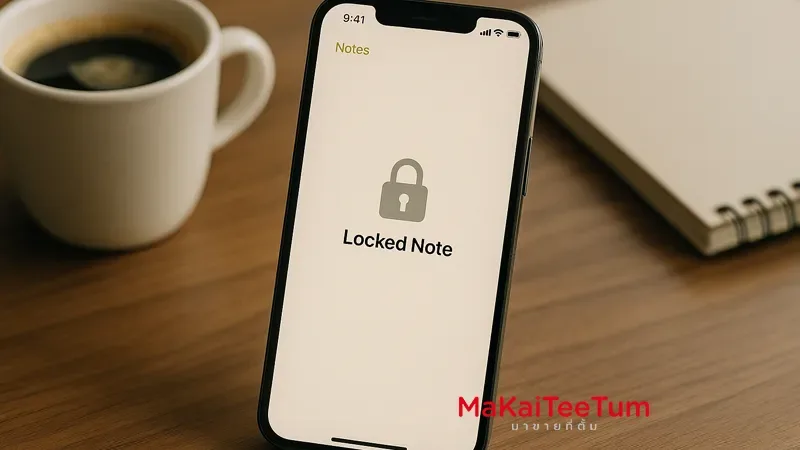
- The note will show a padlock icon and require authentication to open
3. How to Lock Other Apps on iPhone
While iOS doesn’t offer a native app lock feature for third-party apps, you can use several built-in features to limit or restrict app access effectively.
3.1 Using Screen Time to Lock Apps
- Go to Settings > Screen Time
- Turn on Screen Time and set a Screen Time passcode
- Tap App Limits > Add Limit
- Select the apps you want to lock and set a 1-minute usage limit
- Enable Block at End of Limit
Note: After 1 minute of use, the app will require the Screen Time passcode to unlock.
3.2 Using Guided Access to Lock to a Single App
- Go to Settings > Accessibility > Guided Access
- Enable Guided Access and set a passcode
- Open the app you want to lock
- Triple-press the side button to start Guided Access
- Tap Start to begin locking the device to that app
Note: You’ll need your passcode to exit Guided Access mode.
4. Using Face ID or Touch ID for App Protection
Some apps, like Notes or banking apps, support biometric security. Here’s how to enable it:
- Go to Settings > Face ID & Passcode or Touch ID & Passcode
- Enter your device passcode
- Select Other Apps
- Toggle on Face ID or Touch ID for the supported apps
5. Additional Security Tips
- Enable iCloud Keychain to securely sync passwords across your Apple devices
- Avoid using the same password across multiple apps
- Keep your iOS updated to access the latest security features
6. Contact Us
If you need help setting up app locks or securing your iPhone, or if you’re interested in buying or selling Apple devices, contact us:
- Phone: 064-564-7945
- Line ID: @KunTum
References
- Lock your notes on iPhone – Apple Support
- Lock or hide apps on your iPhone – Apple Support
- Lock iPhone to one app with Guided Access – Apple Support