Allowing children and teenagers to use a Mac safely and within set boundaries is essential for responsible digital parenting. This guide explains how to configure various Mac settings to ensure a safe and age-appropriate user experience, alongside tools and techniques that help foster healthy tech habits.
1. Create a Separate User Account for Your Child
Creating a dedicated user account for your child allows you to manage permissions and access settings more effectively.
- Go to Apple menu > System Settings
- Click Users & Groups
- Click the “+” button to add a new account
- Select Standard as the account type
- Set up a name and password for your child’s account
2. Enable Screen Time
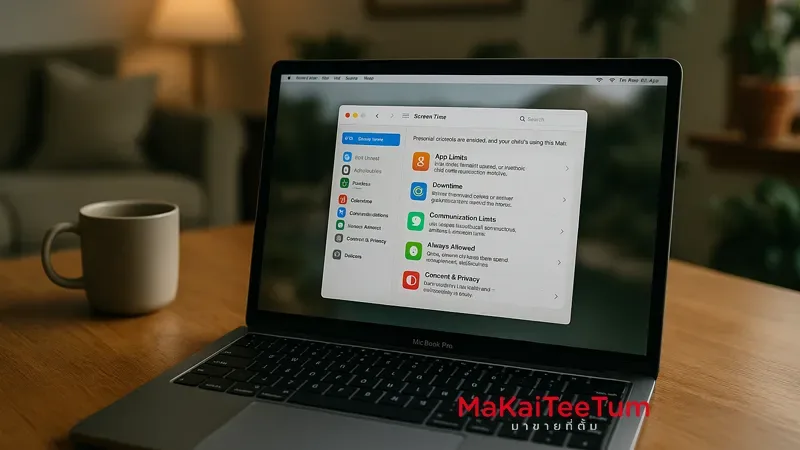
Screen Time lets you monitor and limit your child’s usage to help balance screen time and offline activities.
- Go to Apple menu > System Settings
- Select Screen Time
- Choose your child’s user account
- Click Turn On Screen Time
- Set a Screen Time passcode to prevent unauthorized changes
3. Set Downtime Hours
Scheduling downtime helps children rest and disconnect from their screens at appropriate times.
- Within Screen Time, click on Downtime
- Enable Downtime
- Set daily or weekly quiet hours (e.g., 9 PM – 7 AM)
4. Limit App Usage
Restricting app use prevents overuse and encourages a balanced digital lifestyle.
- Within Screen Time, go to App Limits
- Click Add Limit (+)
- Select app categories or specific apps to limit
- Set the daily time allowance for each
5. Restrict Content & Privacy
Content & Privacy Restrictions help shield your child from inappropriate content and prevent unauthorized changes.
- In Screen Time, select Content & Privacy
- Turn on Content & Privacy Restrictions
- Set rules such as:
- Restrict adult content
- Limit app downloads
- Block system setting changes
6. Use Family Sharing for Better Control
Family Sharing allows parents to manage their child’s Mac usage remotely from another Apple device.
- Go to Apple menu > System Settings
- Select Family Sharing
- Add family members and assign roles (e.g., Parent/Guardian, Child)
- Configure usage controls through the Family Sharing dashboard
7. Consider Third-Party Parental Control Apps
For more advanced options, consider using additional parental control software such as:
- Qustodio: Robust monitoring and control tools
- Net Nanny: Real-time content filtering and usage tracking
- Mobicip: Multi-platform device monitoring
8. Communication is Key
Technical settings should be paired with open communication to help children understand digital responsibility.
- Explain the reasons behind certain restrictions
- Encourage educational and creative tech use
- Allow space for feedback and questions
9. Summary
Setting up a Mac for safe and responsible use by children and teens involves both technical configurations and ongoing conversations. Combining macOS tools, external apps, and good communication leads to a secure and enriching digital experience.
Contact Us
Need more help setting up parental controls or interested in selling used Apple devices? Contact us now:
- Phone: 064-564-7945
- Line ID: @KunTum
References
- Set up content and privacy restrictions in Screen Time on Mac
- Set up Screen Time for a child on Mac
- MacBook Parental Controls Complete Guide – Protect Young Eyes