Running out of storage on your iPhone can be frustrating—especially when trying to take new photos, download apps, or update iOS. This guide provides practical, effective methods to manage and optimize your iPhone’s storage so you always have space when you need it.
1. Check Your Storage Usage
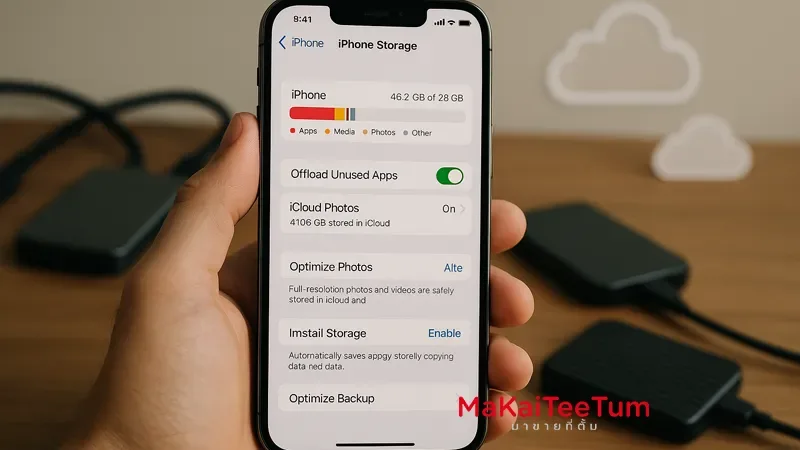
Start by identifying which apps and content use the most space:
- Go to Settings > General > iPhone Storage
- You’ll see a graph and a list of apps sorted by storage usage
2. Enable “Offload Unused Apps”
This feature automatically removes rarely used apps but keeps their data, so they can be reinstalled when needed:
- Go to Settings > General > iPhone Storage
- Tap Enable next to Offload Unused Apps
3. Use iCloud to Store Photos and Videos
Photos and videos often take up significant space. Using iCloud allows you to store originals in the cloud and keep smaller versions on your iPhone:
- Go to Settings > Photos
- Enable iCloud Photos
- Select Optimize iPhone Storage
4. Delete Large Attachments in Messages
Attachments from the Messages app can quietly use up space:
- Go to Settings > General > iPhone Storage
- Tap Review Large Attachments
- Delete files you no longer need
5. Clear Safari Cache
Removing website data can help recover storage:
- Go to Settings > Safari
- Tap Clear History and Website Data
6. Remove Duplicate Photos and Videos
Use iOS’s built-in tool to find and merge duplicates:
- Open the Photos app
- Go to Albums > Utilities > Duplicates
- Tap Merge to consolidate files
7. Delete Unused Files from the Files App
- Open the Files app
- Go to On My iPhone
- Delete files you no longer need
8. Use External Storage Devices
If you need more space, consider using a supported external SSD such as the ORICO FlashPod for quick, portable data transfers.
9. Delete Apps with Heavy Data Usage
- Go to Settings > General > iPhone Storage
- Review and remove apps that consume significant space
10. Additional Tips
- Set messages to auto-delete after 30 days: Settings > Messages > Keep Messages > 30 Days
- Delete old emails and attachments in the Mail app
- Remove downloaded music and podcasts you no longer use
Contact Us
Need help managing your iPhone storage or looking to buy/sell used Apple devices? Contact us today:
- Phone: 064-564-7945
- Line ID: @KunTum
References
- Apple Support: Manage storage on iPhone
- Tom’s Guide: Stop deleting your photos
- WSJ: Your iPhone Storage Is Full Again