Switching from an Android phone to an iPhone may feel daunting—especially if you have a lot of important data stored on your old device, such as contacts, photos, apps, and messages. But don’t worry! Apple provides tools to make the process simple. This guide explains step by step how to transfer data from Android to iPhone, along with tips to ensure you don’t lose anything important.
Preparing Before You Transfer
Before starting, make sure to check and prepare the following:
- Update the operating systems: Ensure both Android and iPhone are running the latest versions available.
- Connect to Wi-Fi: Both devices should be connected to the same Wi-Fi network.
- Charge your devices: Keep both phones above 50% battery or plug them into power while transferring.
- Check iPhone storage: Confirm your iPhone has enough free space for the transferred data.
Using the Move to iOS App
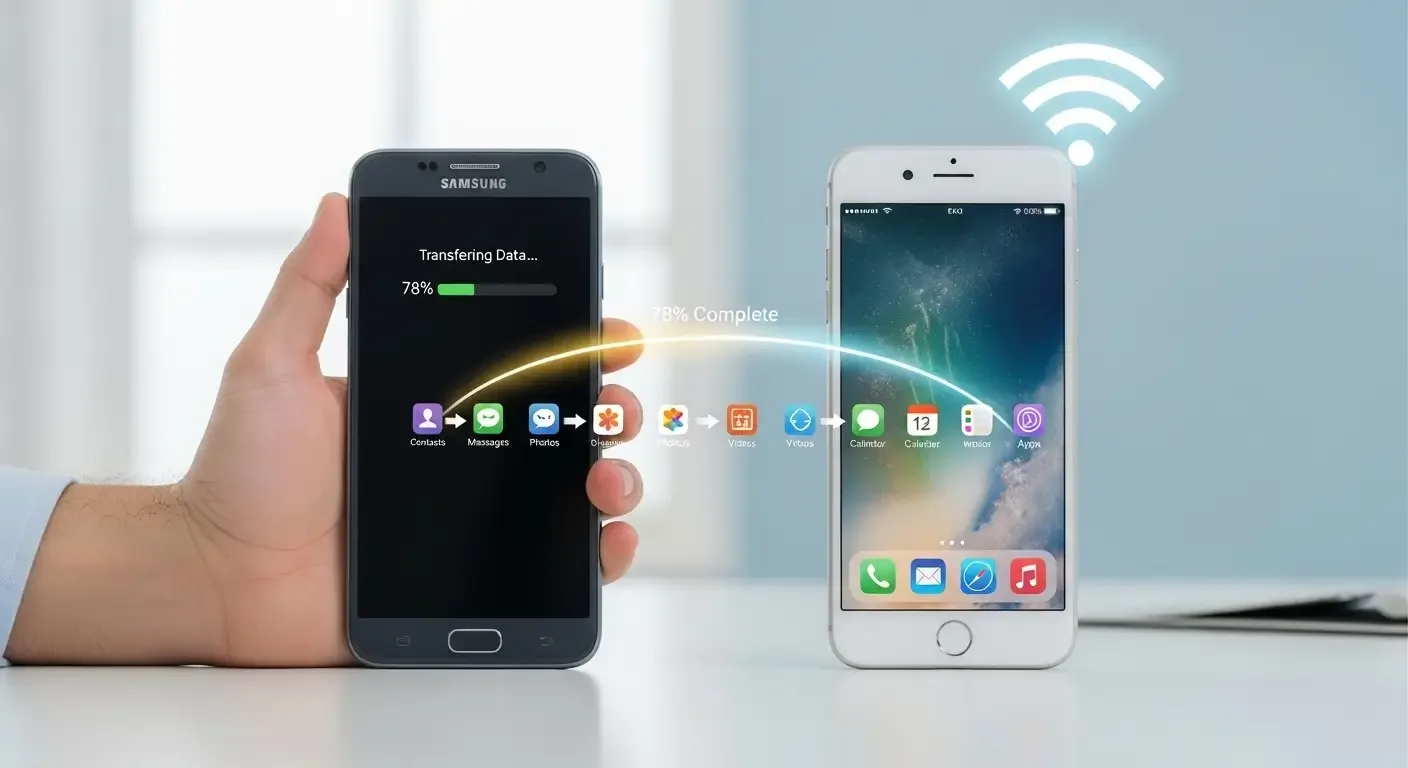
Apple’s Move to iOS app makes it easy to move essential data from Android to iPhone. The following data can be transferred:
- Contacts
- SMS messages
- Photos and videos in the gallery
- Browser bookmarks
- Email accounts
- Certain free apps available on both platforms
Step 1: Download Move to iOS on Android
Open Google Play Store, search for “Move to iOS,” then download and install it on your Android phone.
Step 2: Set Up the New iPhone
While setting up your new iPhone, choose “Move Data from Android” when you reach the “Apps & Data” screen.
Step 3: Open Move to iOS and Connect
On Android, open the Move to iOS app, tap “Continue,” and accept the terms.
A 6–10 digit code will appear on your iPhone. Enter this code into the Android app to start the connection.
Step 4: Select Data to Transfer
On the Android device, choose which data to move (contacts, photos, messages, etc.), then tap “Next.”
Step 5: Transfer and Complete Setup
Wait for the transfer to finish (this may take several minutes depending on data size). Once done, continue setting up your iPhone normally.
What Move to iOS Cannot Transfer
Despite being convenient, Move to iOS has some limitations. It cannot transfer:
- Individually downloaded music files
- Paid apps (must be repurchased in the App Store)
- Chat histories from apps like LINE or WhatsApp (require separate methods)
Transferring WhatsApp Chat History
WhatsApp now supports moving chat history from Android to iPhone through Move to iOS, provided your devices meet requirements (iOS 15.5 or later, Android 5.0 or later).
- Install the latest WhatsApp version on both Android and iPhone.
- Keep both devices on the same Wi-Fi and plugged into power.
- Use Move to iOS and select WhatsApp as data to transfer.
- Log into WhatsApp on iPhone with the same phone number.
Additional Tips After Transferring
- Double-check that all data was moved successfully.
- Sign in with your Apple ID to enable iCloud and download additional apps.
- Set up security features such as Face ID or Touch ID.
- Back up your iPhone regularly using iCloud.
FAQ
Q: Do I need to erase my iPhone before using Move to iOS?
A: Yes. Move to iOS only works on iPhones that haven’t been set up yet. If already set up, you must reset the device to factory settings first.
Q: Can I transfer via USB cable?
A: Currently, Move to iOS does not support USB transfer. It works over Wi-Fi.
Q: What happens if an Android app isn’t available on iOS?
A: That app won’t transfer. You’ll need to find a similar app in the App Store.
Q: Does Move to iOS cost money?
A: No. The app is free from Apple.
Conclusion
Switching from Android to iPhone is easier than ever thanks to Apple’s Move to iOS app. With the right preparation and step-by-step process, you can make the switch smoothly without losing important data. For more help, reach out to Apple Support or check additional guides.