In the digital era, where messaging and video calls are integral to daily communication, protecting your personal data is more important than ever. iMessages and FaceTime by Apple are designed with user privacy in mind. This comprehensive guide explains how to manage privacy settings effectively to ensure your conversations remain secure and confidential.
1. End-to-End Encryption: The Core of Secure Messaging
Both iMessages and FaceTime use end-to-end encryption, meaning your messages and calls are encrypted from the sender to the receiver. Not even Apple can access the content of your communications.
2. Privacy Settings in iMessages
2.1 Enabling or Disabling iMessage
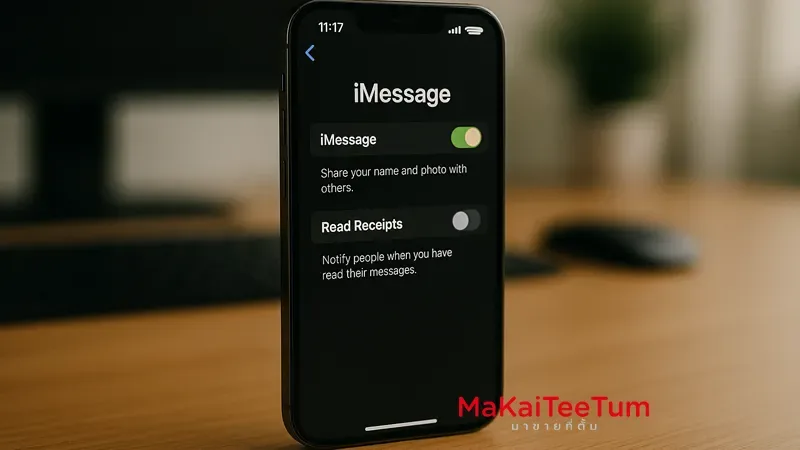
- Go to Settings > Messages
- Toggle iMessage on or off
2.2 Managing Phone Numbers and Emails Used with iMessage
- In Settings > Messages > Send & Receive
- Select the phone numbers and emails you want to use with iMessage
2.3 Disabling Read Receipts
- Go to Settings > Messages
- Toggle off Send Read Receipts
2.4 Filtering Unknown Senders
- In Settings > Messages
- Enable Filter Unknown Senders to separate messages from non-contacts
3. Privacy Settings in FaceTime
3.1 Enabling or Disabling FaceTime
- Go to Settings > FaceTime
- Toggle FaceTime on or off
3.2 Managing Phone Numbers and Emails for FaceTime
- In Settings > FaceTime
- Select the contacts you want to use for FaceTime calls
3.3 Blocking Unwanted Contacts
- Go to Settings > FaceTime > Blocked Contacts
- Add phone numbers or emails to your block list
4. Using Safety Check for Emergency Privacy Control
For users with iOS 16 or later, Apple includes Safety Check, a feature that allows you to manage what you share and with whom quickly.
- Go to Settings > Privacy & Security > Safety Check
- Select Emergency Reset to stop all sharing, or Manage Sharing & Access to review what’s currently being shared
5. Additional Privacy Controls
- Camera and Microphone Access: Manage app access under Settings > Privacy & Security > Camera / Microphone
- App Tracking Transparency: In Settings > Privacy & Security > Tracking, allow or deny apps from tracking your activity
6. Managing Shared Data Across Devices
If you use the same Apple ID on multiple devices, your messages and FaceTime calls may appear on all of them. To manage this:
- Go to Settings > Messages > Send & Receive
- Uncheck the numbers or emails you don’t want to use with iMessage
- Do the same in Settings > FaceTime for call management
7. Contact Us
If you need help configuring your privacy settings for iMessages or FaceTime or have questions about Apple devices, don’t hesitate to reach out:
- Phone: 064-564-7945
- Line ID: @KunTum
References
- Manage safety settings in Messages – Apple Support
- Control what you share on iPhone – Apple Support
- About Communication Safety on your child’s Apple device – Apple Support