AirDrop is a convenient way to share files between Apple devices. However, if it’s set to “Everyone,” there’s a risk of receiving unwanted or even inappropriate files from strangers. This guide explains how AirDrop works, walks you through secure settings, and helps you avoid accidental or unwanted transfers completely.
How AirDrop Works & What Risks to Know
- AirDrop uses TLS encryption over peer-to-peer Wi-Fi (Apple Wireless Direct Link) and Bluetooth LE to transfer files directly without the internet or central server.
- When set to “Everyone,” anyone nearby can see your device and attempt to send files—though you must still manually **Accept** each request. This leaves you vulnerable to “cyber‑flashing,” spam, or malicious files.
Secure Settings for AirDrop: Control Who Can Send Files
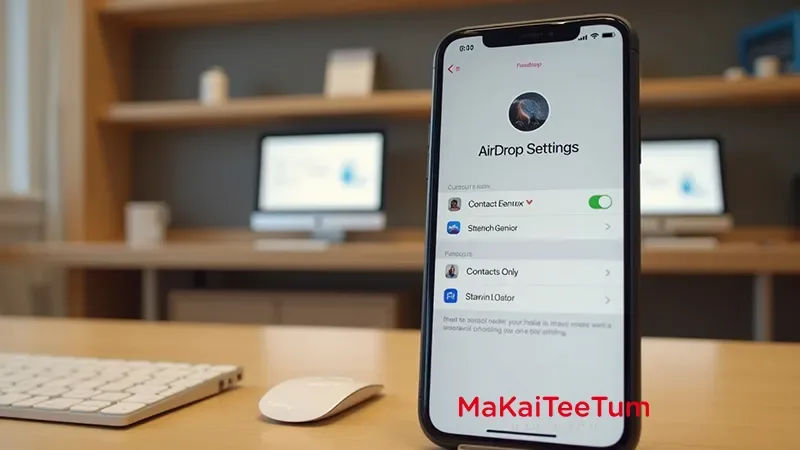
- Contacts Only: Only people saved in your contact list can see your device and send content.
- Receiving Off (No One): The safest option—your device is not visible, and cannot receive any AirDrop file. Ideal for public spaces.
- On recent iOS/macOS versions, Apple limits “Everyone” mode automatically to **10 minutes**, then reverts to safe mode to reduce risk.
How to Change AirDrop Settings
- On iPhone / iPad:
- Open **Settings → General → AirDrop**, then select **Contacts Only** or **Receiving Off**.
- Or use **Control Center**: swipe down (or up), press the network panel, tap AirDrop, and choose your mode.
- On Mac:
- Open *Finder → AirDrop*, then set “Allow me to be discovered by” to **Contacts Only** or **No One**.
- Or go via Control Center or System Settings → AirDrop & Handoff in macOS Ventura and later.
Why “Contacts Only” Is Safer—and When to Use “Receiving Off”
- Contacts Only: Good for regular use with people you trust (e.g. coworkers or friends).
- Receiving Off: Best when in public spaces—your device is hidden and fully protected.
Extra Tips for Safer AirDrop Use
- Rename your device: Go to Settings → General → About → Name to avoid revealing your identity in AirDrop listings.
- Disable NameDrop: If running iOS 17.1+, turn off NameDrop under AirDrop settings to avoid accidental contact sharing.
- Turn off Bluetooth or Wi‑Fi: When not using AirDrop, disabling one or both reduces attack surface further.
- Use Screen Time to lock settings: Parents can restrict AirDrop via Screen Time → Content & Privacy Restrictions → Allowed Apps, then disable AirDrop permanently.
What To Do If You Accidentally Accept
- You can cancel a pending AirDrop by tapping the same recipient again if it hasn’t fully transferred yet. Once the send completes, cancellation isn’t possible.
- Even if you accept, AirDrop cannot install malware or access personal data like Apple Pay or contacts—it’s strictly file-transfer only.
✅ Quick Reference: When to Use Which Mode
- Receiving Off: Default in public places like cafes or events.
- Contacts Only: Safe for use with known individuals in private or work environments.
- Everyone (only briefly): Use only when expecting a transfer from someone not in your contacts, then switch back immediately.
Need help securing your iPhone or Mac, setting AirDrop correctly, or preparing for resale?
Contact MaKaiTeeTum — we’ll help you configure privacy settings, lock down device visibility, and get your device ready for safe use or resale.
Call: 064‑564‑7945
Line ID: @KunTum