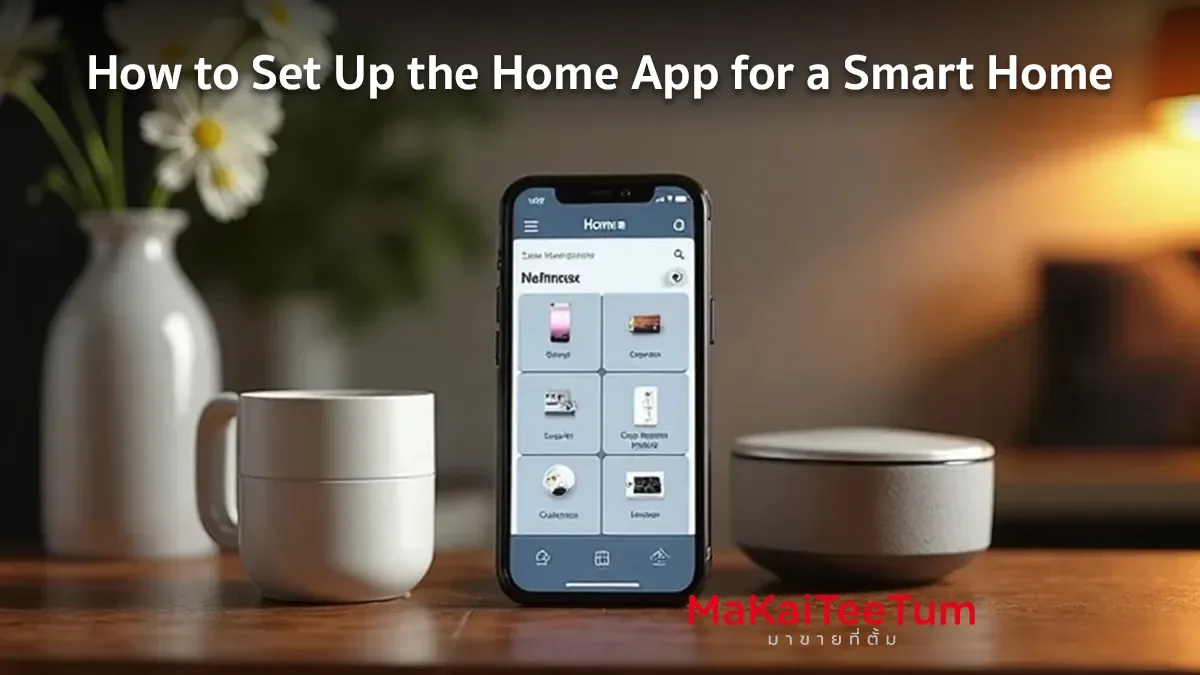
As smart home technology becomes more popular, Apple’s Home App provides a seamless way to control your HomeKit-enabled devices. Whether you want to adjust smart lights, manage security cameras, lock your doors, or control room temperature, the Home App allows you to do all of this from your iPhone, iPad, or HomePod. In this guide, we’ll walk you through the complete setup process, including how to add and manage smart devices, create automations, and troubleshoot common issues.
What is the Home App and How Does It Work?
The Home App is Apple’s official hub for managing HomeKit-compatible smart home devices, allowing you to:
- Control smart home devices from iPhone, iPad, Mac, or HomePod
- Set up automation routines to make your home smarter
- Share control with family members
- Manage your home remotely via a Home Hub (Apple TV, HomePod, or iPad)
Devices That Work with the Home App and HomeKit
Before setting up, ensure that your devices are compatible with HomeKit:
- Home Hub: Apple TV, HomePod, or iPad (for remote access and automations)
- HomeKit-compatible accessories: Examples include Philips Hue Lights, August Smart Locks, Eufy Security Cameras, and Ecobee Thermostats
- Latest iOS or iPadOS updates for smooth functionality
How to Set Up the Home App and Add Smart Devices
Setting Up Your Smart Home in the Home App
- Open the Home App on your iPhone or iPad
- Tap Add Home and name your home
- Configure rooms like Living Room, Kitchen, or Bedroom
Adding HomeKit Accessories to the Home App
- Open the Home App and tap + (Add Accessory)
- Scan the QR Code on the smart device or manually enter the HomeKit code
- Name the accessory and assign it to a room (e.g., “Living Room Lamp”)
- Save the settings and test the functionality
Setting Up a Home Hub for Remote Control
- Use an Apple TV, HomePod, or iPad as a control hub
- Go to Settings > Home > Set Up Home Hub and select the device to act as the hub
Automating Your Smart Home with Scenes and Automations
Creating Scenes to Control Multiple Devices at Once
Example: A “Good Night” scene can turn off lights, lock doors, and adjust the thermostat
How to set up a scene:
- Open Home App > + (Add Scene)
- Select the devices you want to control
- Set commands like “Turn off lights” and “Lower temperature”
Setting Up Automations for Smart Home Functionality
Automate lights to turn on at sunset
Activate security cameras when motion is detected
How to set up automation:
- Go to Automation > + (New Automation)
- Choose a trigger like time, location, or motion
- Select the devices that should respond
Sharing Home Access with Family Members
- Go to Home App > Home Settings > Invite People
- Enter the Apple ID of the person you want to grant access
- Set permission levels (view-only or full control
Common Home App Issues and How to Fix Them
Issue: HomeKit device not showing up
- Restart the device and confirm HomeKit compatibility
Issue: Unable to control devices remotely
- Ensure your Home Hub (Apple TV/HomePod/iPad) is online
Issue: Automations not working
- Check if devices are powered and connected to Wi-Fi
Tips for Getting the Most Out of the Home App
- Use Siri voice commands – Example: “Siri, turn off the living room lights”
- Check HomeKit compatibility before purchasing smart devices
- Enable Guest Access for temporary users (e.g., house guests)
References: