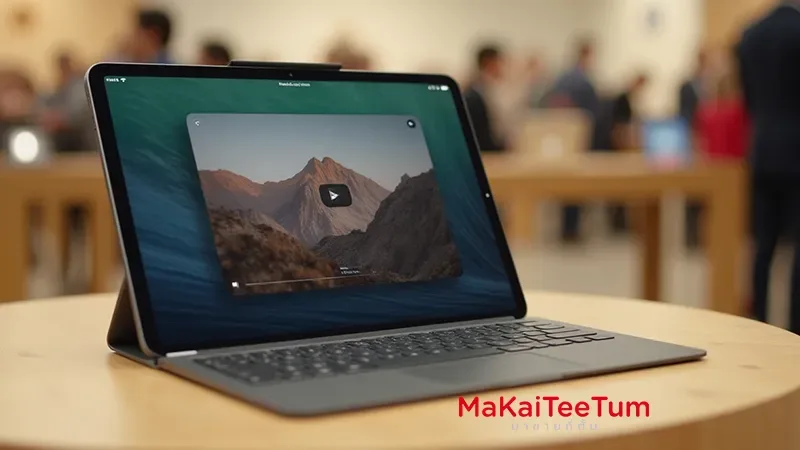
Picture in Picture (PiP) lets you watch videos or take FaceTime calls in a floating window while using other apps. Introduced on iPad with iOS 13 and on iPhone since iOS 14, this feature enhances multitasking. In this guide, you’ll learn how to enable PiP, which apps support it, how to control the PiP window, and troubleshoot common issues.
What Is Picture in Picture?
- PiP shrinks a video or FaceTime call into a small, movable window that floats above other apps on your screen.
- This allows you to continue watching while emailing, browsing, or using other apps uninterrupted.
Which Devices and OS Versions Support PiP?
- Available on iPad (5th generation and later), iPad Air 2+, iPad mini 4+, iPad Pro, and iPhone with iOS 14 or later.
How to Enable or Disable PiP
- Go to Settings → General → Picture in Picture and toggle **Start PiP Automatically** on or off. Even if disabled, compatible apps often let you launch PiP manually.
Step‑by‑Step: Launching PiP
- In supported apps (e.g., Apple TV, FaceTime, Safari, Podcasts, Music, Prime Video), tap the PiP icon or swipe up/home vertically while video is playing to activate PiP.
- PiP starts automatically for FaceTime when you leave fullscreen.— swipe up or press home.
How to Control the PiP Window
- Move: Drag the mini window to any corner.
- Resize: Pinch open to enlarge or pinch closed to shrink. Tap twice to toggle sizes—small, medium, large.
- Hide: Drag off left or right edge; audio continues. Drag inward arrow to restore.
- Close: Tap the **×** button.
- Return full screen: Tap the restore/full‑screen icon in the PiP window.
Which Apps Support PiP?
- Built‑in Apple apps like FaceTime, Apple TV, Podcasts, Music, Home and Safari support PiP.
- Third‑party apps must explicitly support PiP—for example, Netflix, Disney+, Amazon Prime.
- YouTube only supports Picture in Picture in iOS 15+ and with YouTube Premium; else use web video in Safari.
Troubleshooting PiP Issues
- If PiP doesn’t start, verify auto‑start enabled in Settings → General → Picture in Picture.
- Try manually tapping the PiP icon or swiping home while video is playing.
- Use Safari to view web videos if an app doesn’t support PiP by default.
- Reddit users note some apps (e.g. YouTube or WhatsApp) may inconsistently support PiP depending on developer implementation.
Why PiP Matters: Practical Benefits
- Multitasking made easier: Watch a show while browsing, messaging, or checking emails.
- Seamless FaceTime: Keep your call visible while taking notes or referencing another app.
- Resale prep tip: Demonstrate PiP functionality during resale to emphasize fully working features—boosts trust.
Quick Comparison: PiP Modes & Actions
- Swipe up or press Home: Launch PiP automatically.
- Tap PiP icon: For manual activation in supported apps.
- Pinch gesture: Resize PiP window.
- Drag edge to hide: Keep audio playing while freeing screen space.
Want help setting up or demonstrating Picture in Picture on your devices?
Contact MaKaiTeeTum — we guide you step‑by‑step to configure PiP on your iPhone and iPad, show real‑time demo, and ensure your devices are optimized before resale.
Call: 064‑564‑7945
Line ID: @KunTum